Install the official VidBee browser extension first. This is the recommended way to use your browser’s signed-in session for downloads in VidBee Desktop. The extension supplies current cookies from the connected browser for each download.
Recommended: Install the VidBee browser extension
Install the VidBee extension for Chrome and Edge
- Install the official VidBee extension from the Chrome Web Store. Edge can install it from the same link.
- Open VidBee Desktop and keep both the app and your browser running.
- Sign in to the video site in that same browser.
- Open VidBee → Settings → Cookies. Check that Browser extension shows Connected. The cookie status shows Ready when a supported signed-in session is available.
- Return to the home page and start your download. VidBee requests cookies from the connected browser automatically.
Already connected? You can leave Select browser to use cookies from set to None and leave Cookies file empty. Those fields are for the manual alternatives below. You do not need to export a cookies file when using the VidBee extension.
Keep using your browser normally. If your session expires, sign in again in the connected browser and retry the download.
When you need cookies
- Content that requires an account to view or download.
- Age-gated pages that your signed-in account can access.
- Private links or lists visible only to signed-in users.
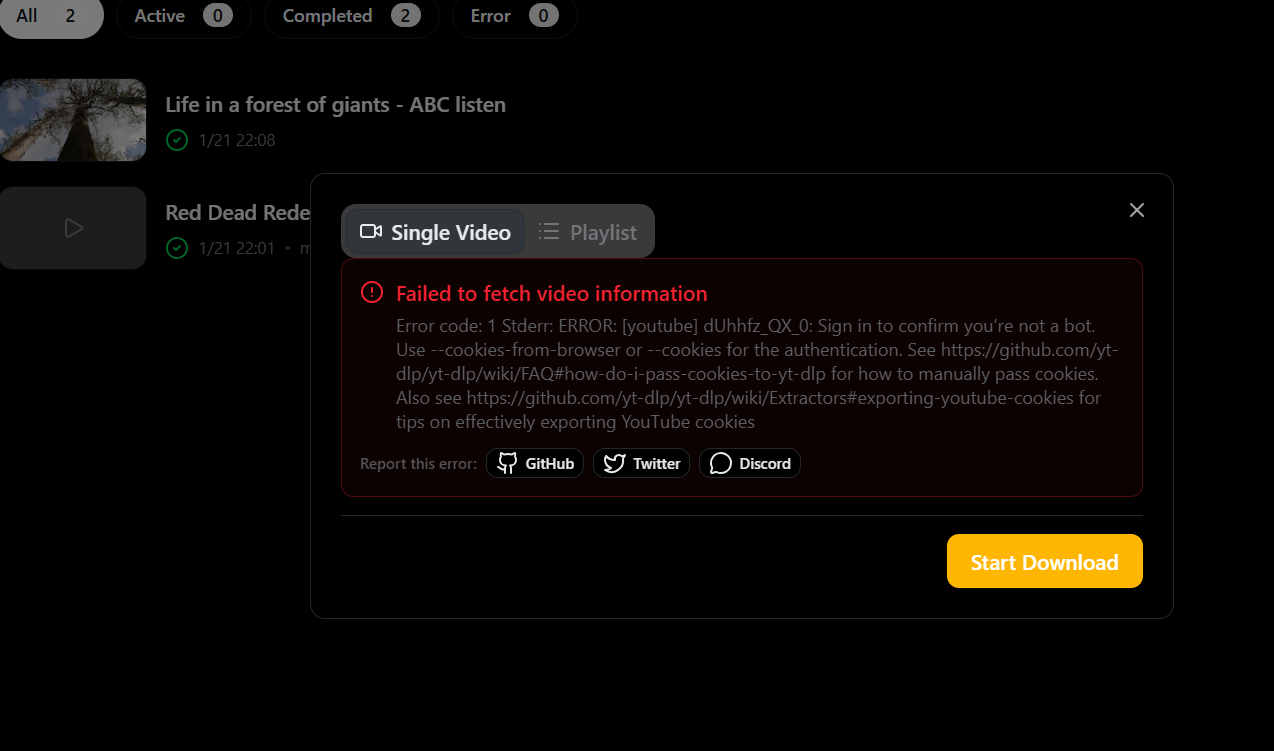
- “Sign in to confirm you’re not a bot” or similar verification prompts.
If a download asks you to sign in, try the VidBee extension first. Your account must be able to access the content in the connected browser.
Other ways to provide cookies
If you cannot use the VidBee extension, you can configure one of these manual sources.
Read cookies directly from a browser profile
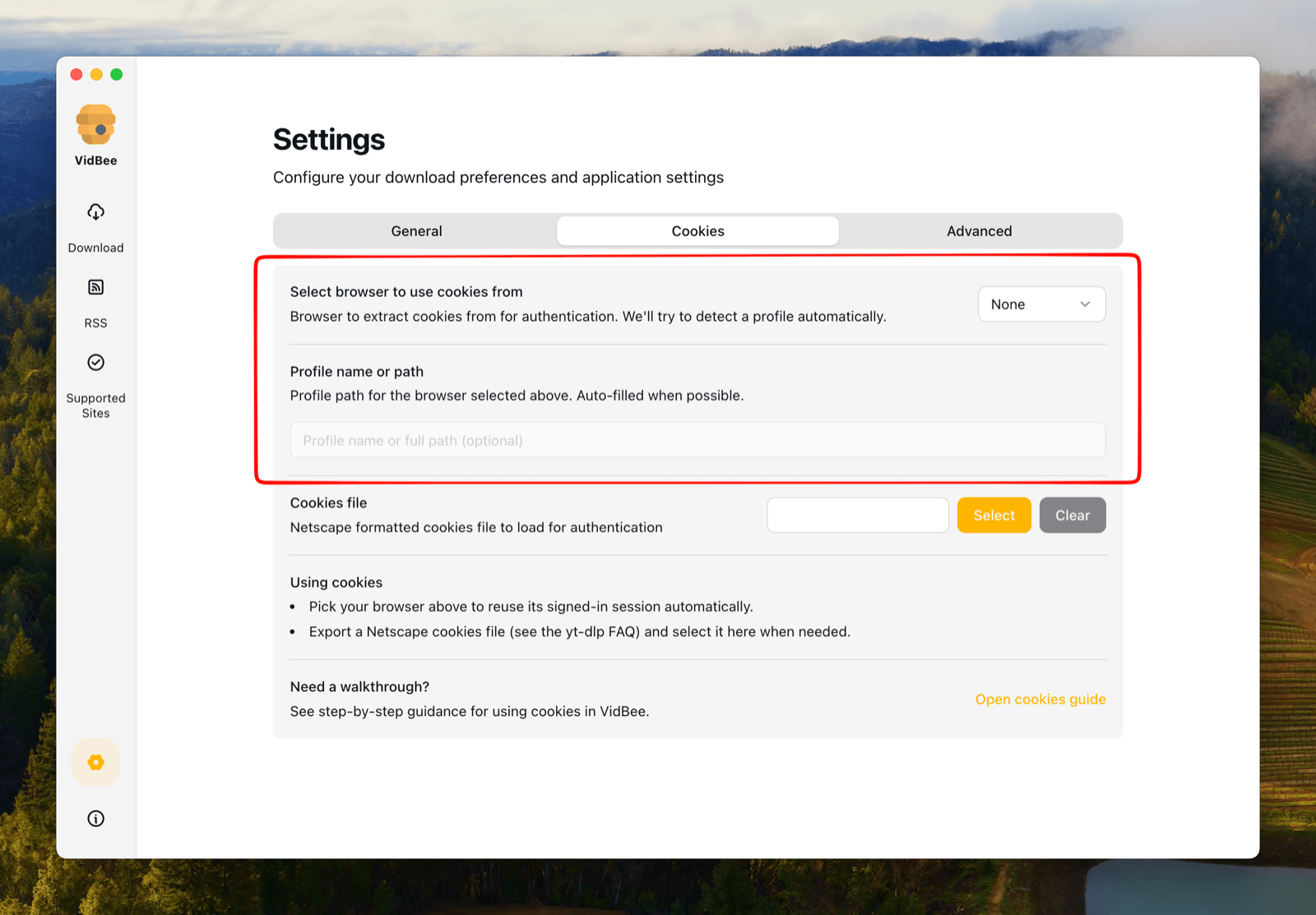
In Settings → Cookies, select your browser. VidBee will try to detect the browser profile path automatically. You can also enter the profile path manually.
Supported browsers (platform dependent):
- Windows: Firefox only for direct browser-profile reading. Chrome and Edge users should use the recommended VidBee extension above.
- macOS: All browsers supported.
- Linux: All browsers supported.
Steps:
- Sign in to the site in your browser first.
- Open VidBee → Settings → Cookies.
- Select a browser and confirm the profile path.
- Go back and start the download again.
If detection fails or the path is invalid, manually choose the actual browser profile directory. On Windows, use the VidBee extension for Chrome or Edge. If the extension is unavailable, you can import a cookies file instead.
Import a cookies file
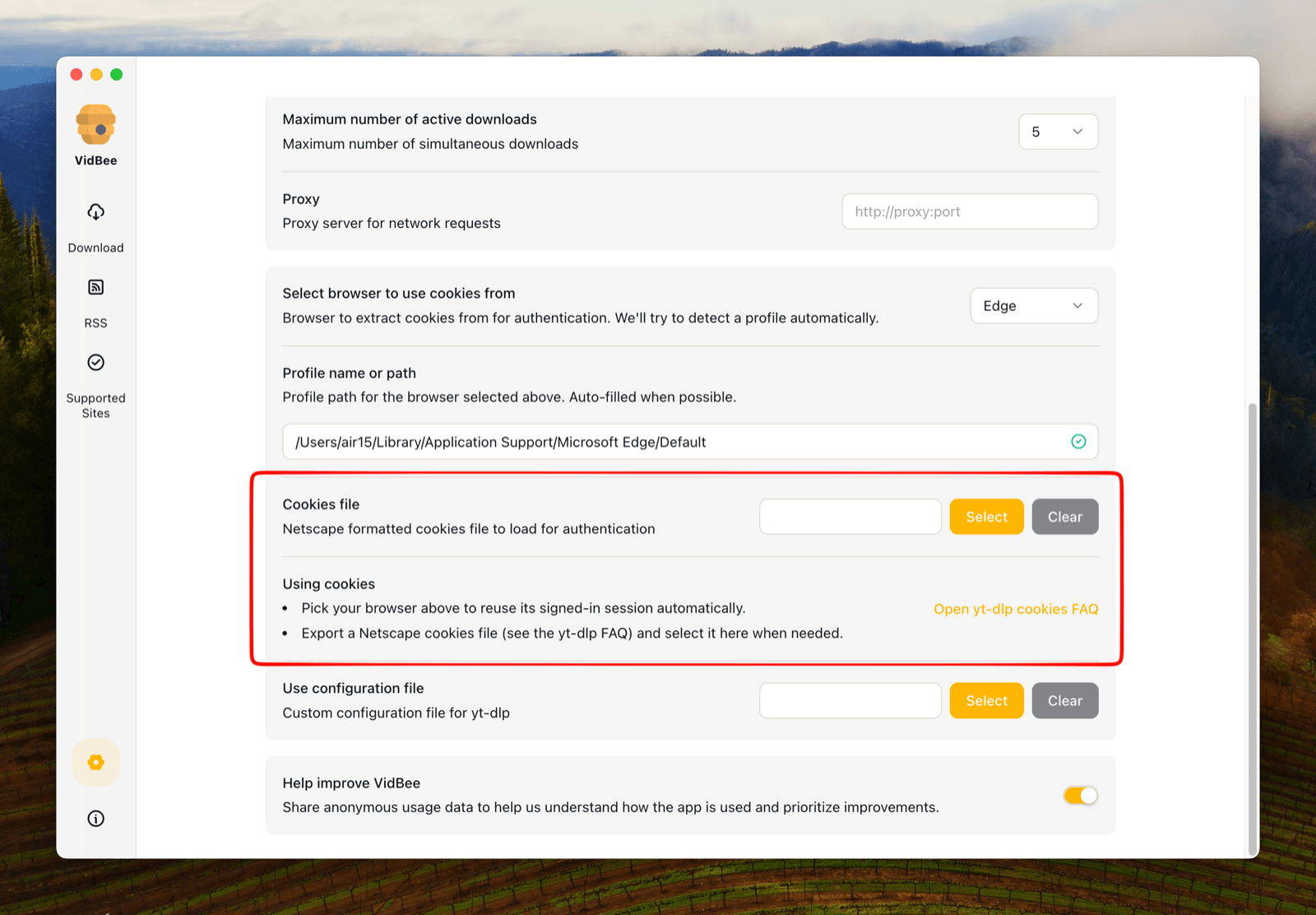
Use a cookies file when the VidBee extension and direct browser-profile reading are unavailable. Files contain a snapshot of your cookies and may need to be exported again when your login session changes.
Steps:
-
Install a cookies file export tool
These third-party extensions export files for this manual method:
- Chrome/Edge: Get cookies.txt LOCALLY
- Firefox: cookies.txt
For the recommended live browser connection, use the official VidBee extension at the top of this guide. These tools are only for exporting a
cookies.txtfile. -
Export your cookies
Click the export button in the extension and choose where to save the file. The extension will automatically export the cookies in Netscape format.
-
Import to VidBee
- Open VidBee → Settings → Cookies → Cookies file
- Click Select file and choose the exported cookies file
- Retry your download when done
-
Remove the cookies file
Click Clear to disable it anytime.
Recommendations
- Use the official VidBee extension as your first choice.
- Keep VidBee Desktop and the connected browser running while downloading.
- Use direct browser-profile reading or a cookies file when the VidBee extension is unavailable.
- Cookies files expire. Re-export when your account state changes.
Troubleshooting
VidBee browser extension
- Not connected: Keep VidBee Desktop and your browser open. Confirm that you installed the official VidBee extension, open it again, and recheck Settings → Cookies → Browser extension.
- Connected, but the download asks for login: Sign in to the site in the connected browser and retry. Confirm that your account can open the requested content.
- The manual browser selector says None: This is normal when the extension shows Connected. You can use the extension without selecting a browser profile or importing a file.
Direct browser-profile reading
- Profile path is invalid: Ensure the folder exists and points to the real browser profile directory.
- Browser read failed: Prefer the VidBee extension. If you need to keep using direct profile reading, close the browser and retry, or import a cookies file.
Cookies file import
- Still asks for login: Verify your browser is signed into the account. If signed in, ensure the exported cookies file is complete and properly formatted.
- Export extension not working: Make sure you installed the recommended extension version. Some outdated or unauthorized versions may not work properly.
- Cookies file expired: If unused for a long time, your login session may have expired. Sign in again in your browser and export a new cookies file.
- HTTP Error 400: This usually indicates a file format issue. Ensure the file is in standard Netscape format with correct encoding.
Learn more
Privacy and security
Cookies are equivalent to your login session. Keep them private and never share or upload them. If you suspect leakage, sign out and change your password.