VidBee is a desktop queue for video and audio. Paste a link, pick a format, and the file lands in a folder you control. No account. No cloud copy of the media.
Core features
- 1000+ sites — paste a video, audio, playlist, or channel link
- Format picker — quality, codec, fps, audio language, custom folder
- Playlists — select items or a start–end range
- One-click — skip the picker and use your default type, quality, and container
- Queue — progress, cancel, retry, multi-select, open the file
- Details and logs — source, format, yt-dlp command and output
- Local files — folder you choose; cookies when a site needs a session
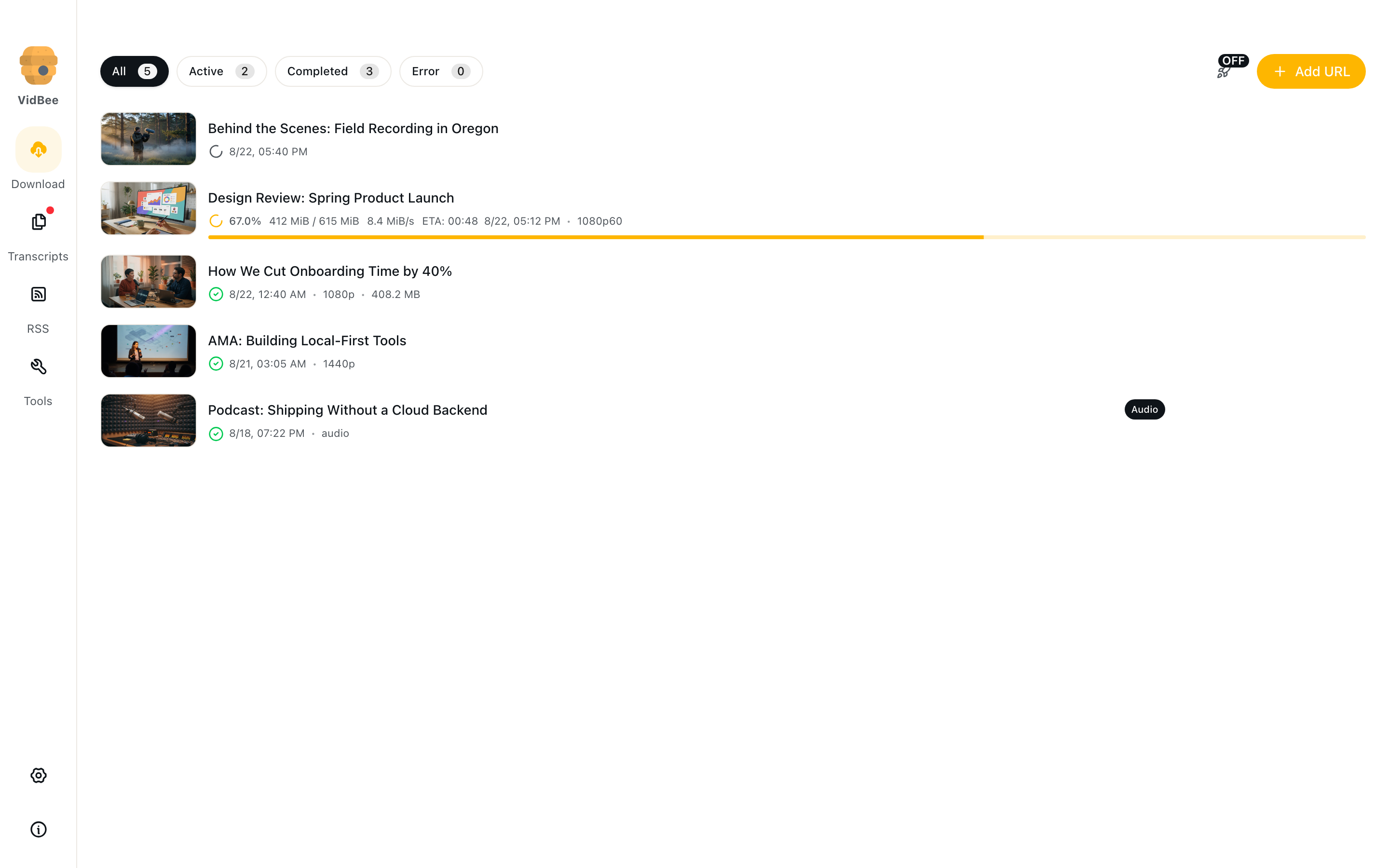
The home list is both the live queue and history. Filter by All, Active, Completed, or Error. Each row shows status, date, quality, and size. Audio items get an Audio badge. Items that came from a subscription get a Subscription badge.
Add a download
- Click Add URL (or press the paste shortcut when the popover is open).
- Paste a video, audio, playlist, or channel link. Invalid clipboard text is rejected.
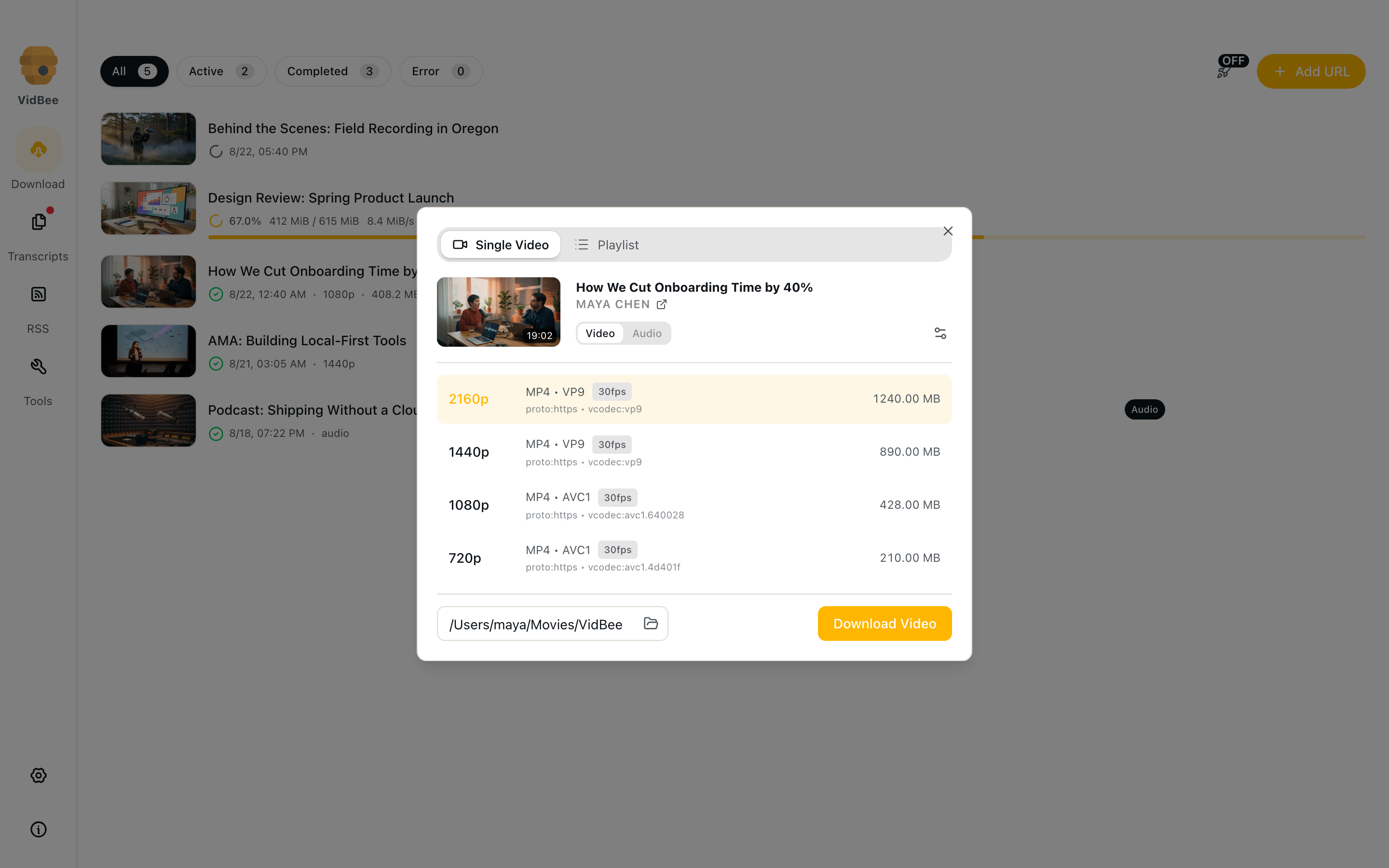
- Click Fetch to load title, duration, and formats.
- Choose Video or Audio, pick a quality, and click Download Video or Download Audio.
You can also:
- Drop a URL onto the home page to start a download.
- Drop an audio or video file to send it to transcripts instead.
- Start from the browser with the vidbee:// protocol, including playlists.
One-click download (the OFF/ON control next to Add URL, or Settings → General) skips the format picker and uses your default type, quality, and container. Turn it off when you want to choose a specific stream.
Format picker
After Fetch, the dialog shows the title, uploader, duration, and thumbnail.
- Video / Audio tabs switch between picture streams and audio-only extracts (M4A, Opus, MP3, and similar).
- Each video row shows resolution (
1080p,1080p60,1440p), container, codec, fps, and size. - Audio rows show bitrate and language when the source has more than one track. VidBee can remember the last audio language you picked (Settings → Advanced).
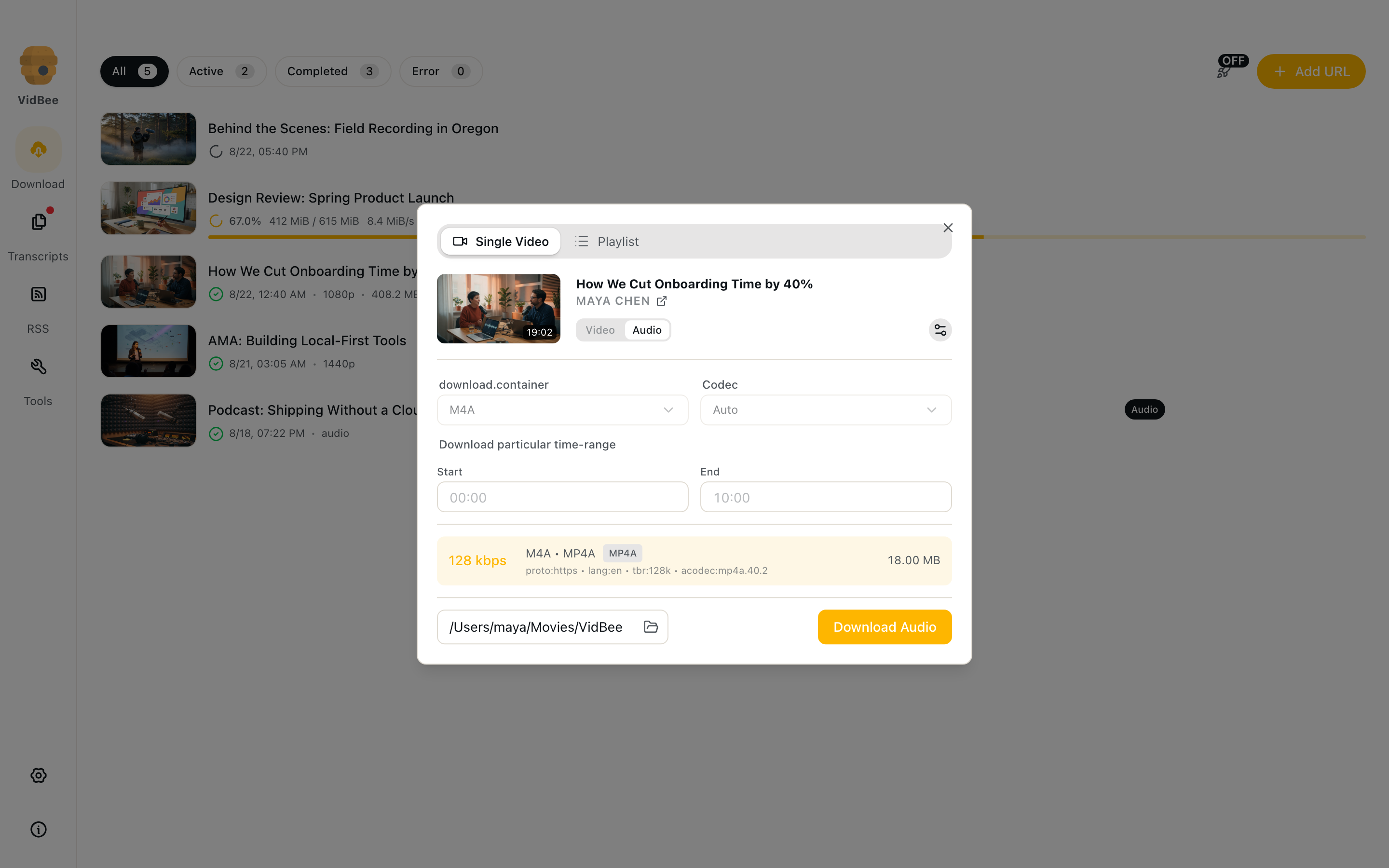
- Pick a custom folder for this job only. Later jobs still use Settings → General → Download location.
- Open Advanced options for a start–end time range (clip a chapter) and download subtitles for this job.
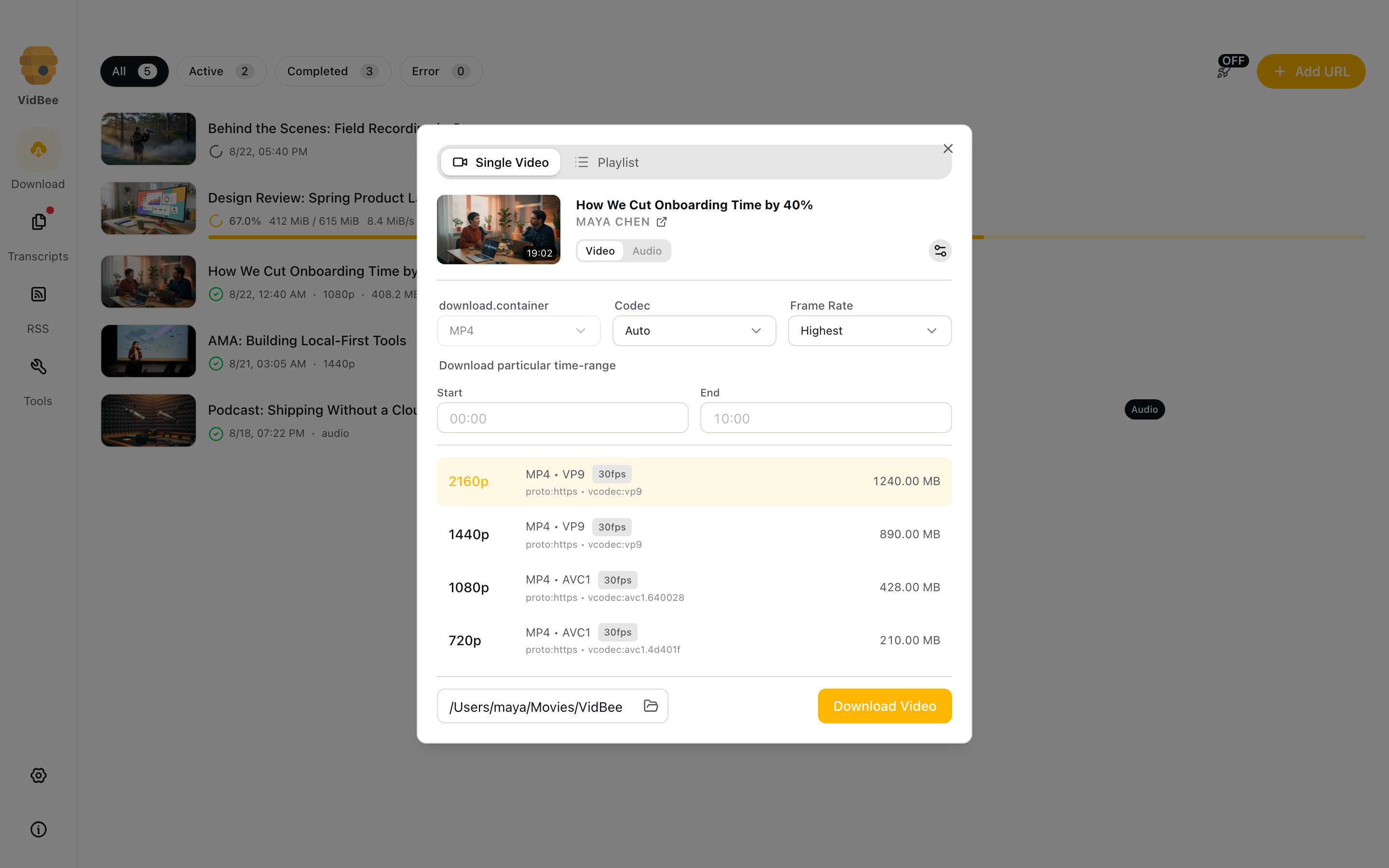
If the site cannot deliver the stream you picked (common on premium 4K tiers), VidBee falls back to the best available and shows Selected format unavailable on the finished row.
Merged video defaults to MP4 and falls back to MKV when the codecs cannot sit in MP4. Change the default in Formats & Containers, or per one-click download in Settings → General → Container.
Playlists and channels
Switch the dialog to Playlist (or paste a playlist/channel URL). VidBee loads the entry list so you can:
- Select or deselect individual videos.
- Set a start and end index instead of the whole list.
- Download the selection as video or audio.
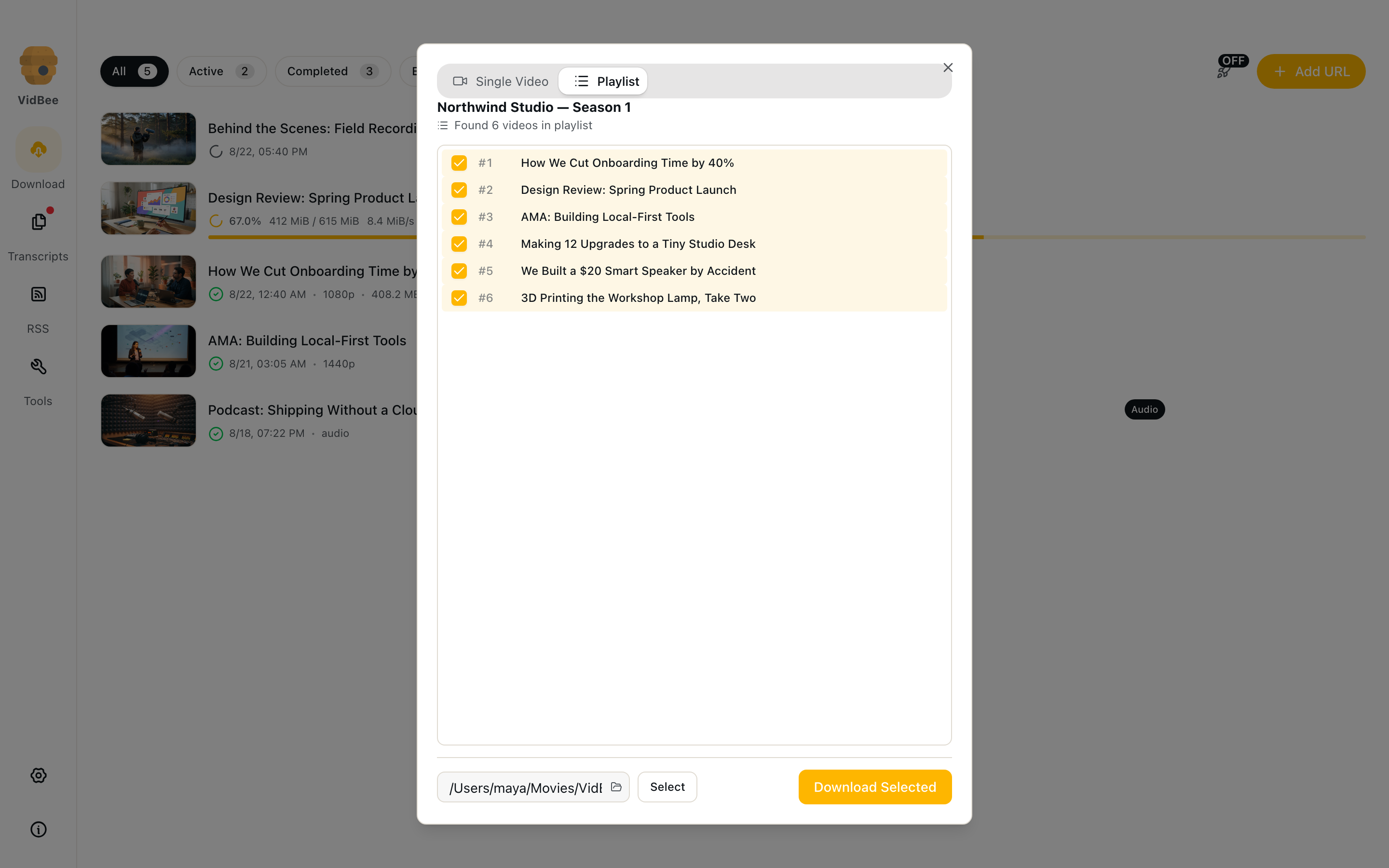
On the home list, playlist jobs group under the playlist title with a collapsed progress count (3 / 12 completed). Expand the group to manage each item. Right-click the group to remove the playlist history (optional file delete).
Queue, selection, and files
While a job runs you see percent, downloaded/total size, speed, and ETA, plus a thin progress bar. Cancel stops an active or pending job.
On a finished row you can:
- Double-click to open the file.
- Open folder next to the file.
- Copy the file to the clipboard (macOS-friendly for pasting into other apps).
- Retry a failed or cancelled job.
- Jump to the transcript when the file is still on disk.
Right-click a row for the same actions, plus Copy URL, Show details, Delete file, or Remove from list. Removing from the list keeps the file unless you choose delete.
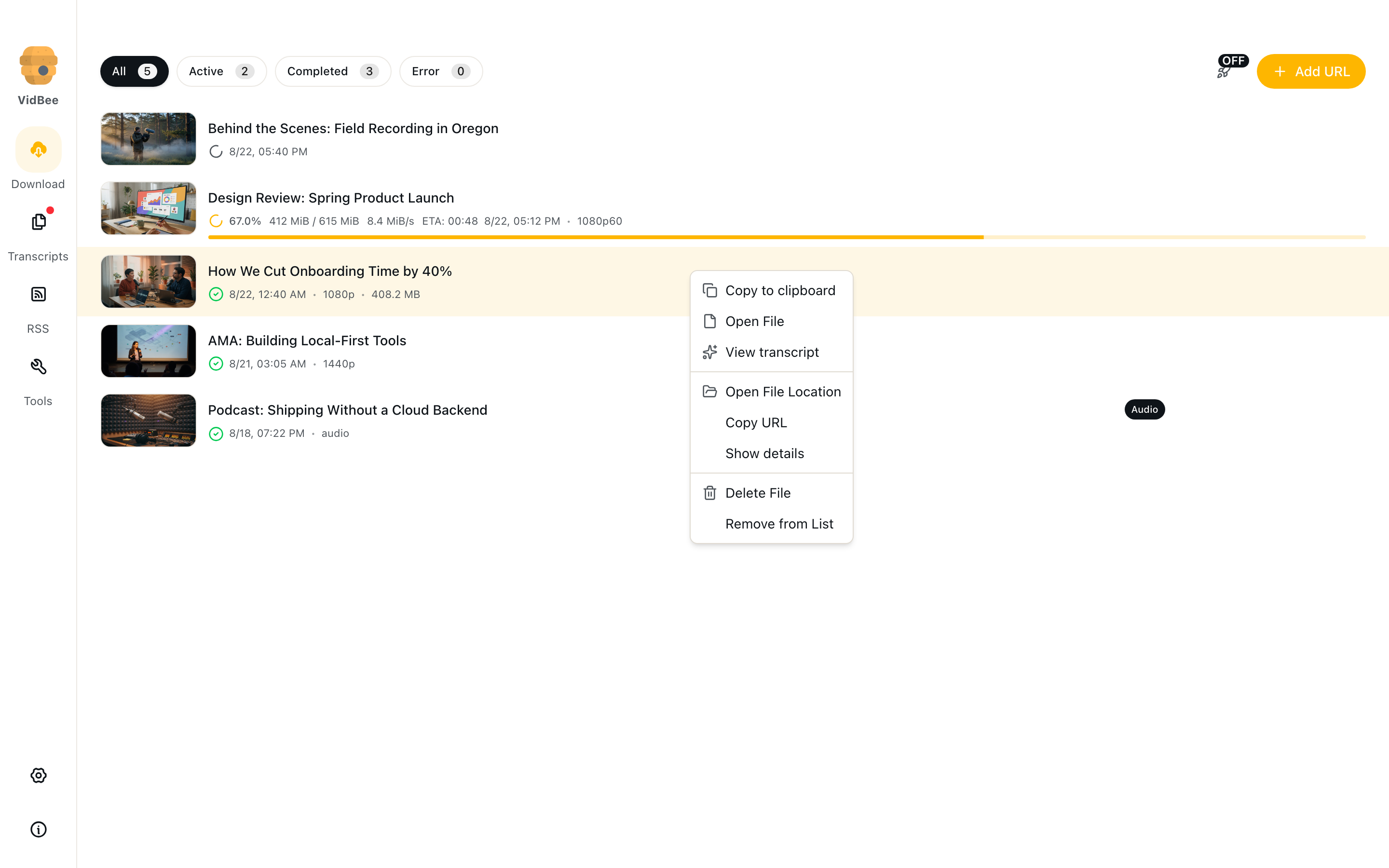
Select multiple history items with the checkbox on the thumbnail, Select visible, or Ctrl/Cmd+A. Remove selected can leave files on disk or delete them too.
Details and logs
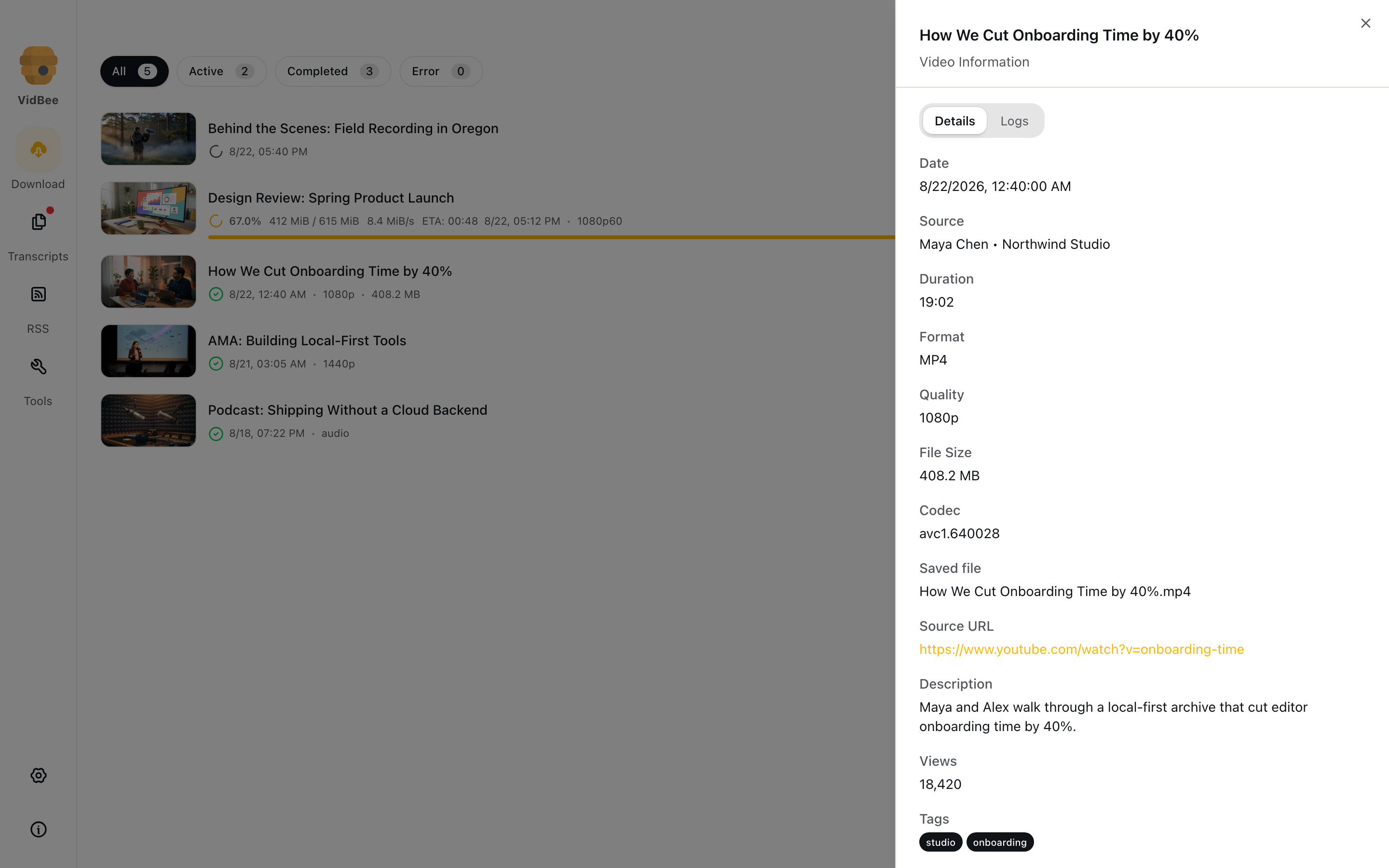
Open Show details (or the details tab in the side sheet) for source, playlist position, format, codec, saved filename, timestamps, and tags.
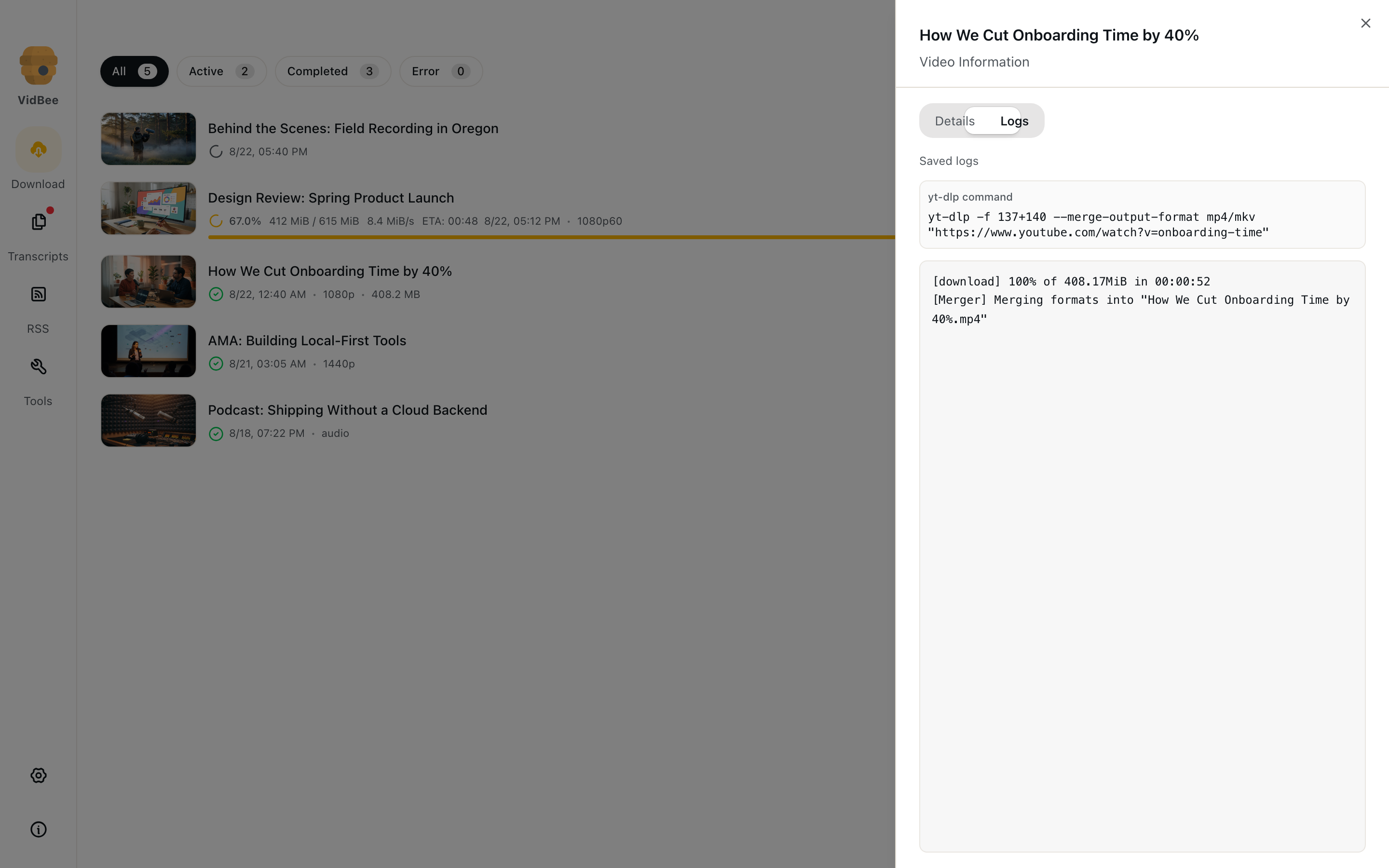
The Logs tab shows the live or saved yt-dlp output and the exact command VidBee ran. Scroll up to pause auto-scroll.
When a download fails
- Confirm the link opens in a browser, then retry.
- Age-gated, private, or “sign in to confirm you are not a bot” pages need cookies. Failed rows that look like a session problem show Set up cookies.
- View logs and Report this error (GitHub or in-app feedback) attach the URL, command, and log.
- Slow jobs: lower Maximum number of active downloads, check the proxy, or avoid starting too many at once.
Download settings
These live in Settings and apply to new jobs (including subscriptions).
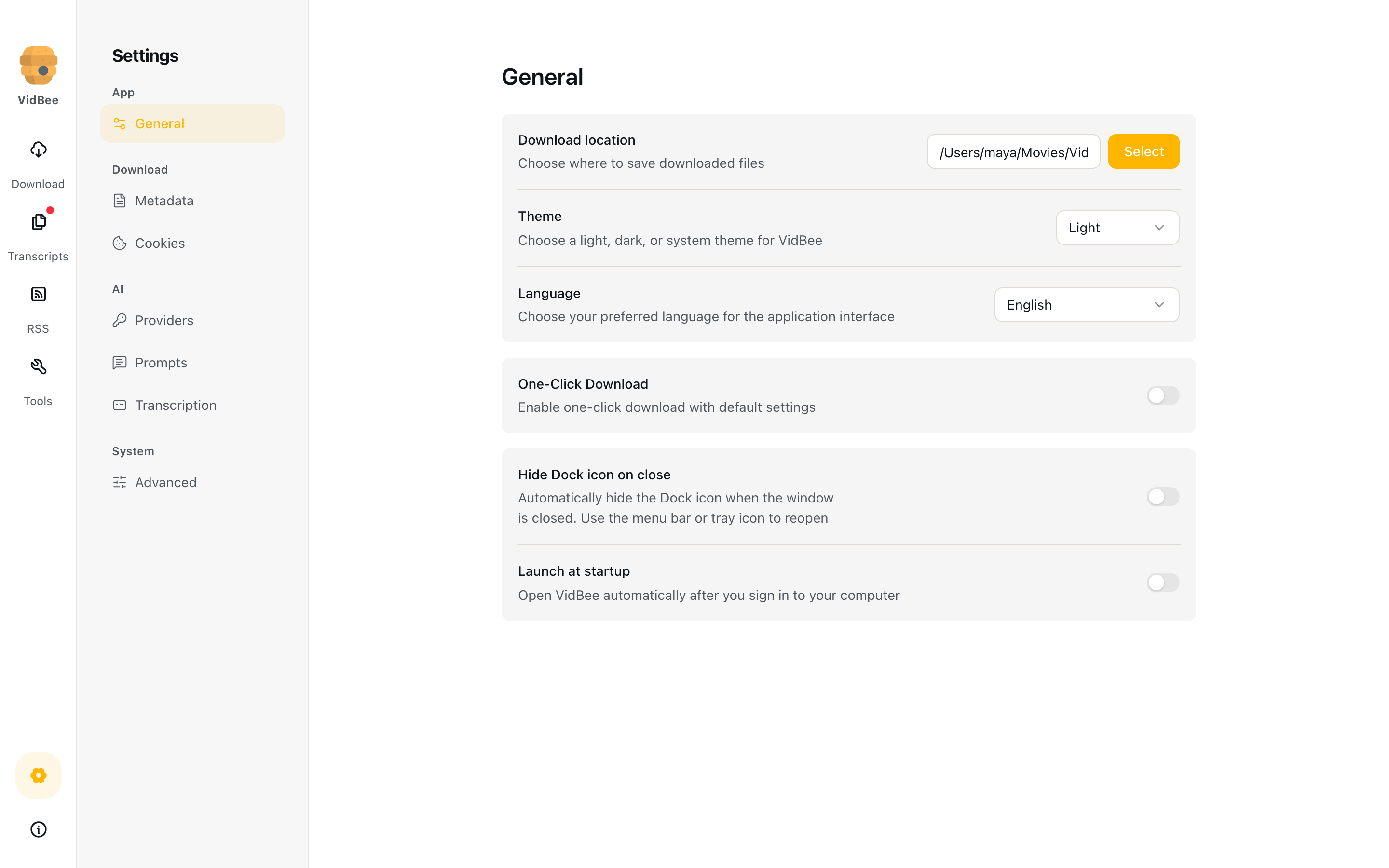
General
- Download location
- One-click download, default type (video/audio), quality preset (Best ≤4K down to Worst ≤360p), container
- Theme and interface language
- Launch at startup (macOS/Windows)
- Hide Dock icon on close (macOS)
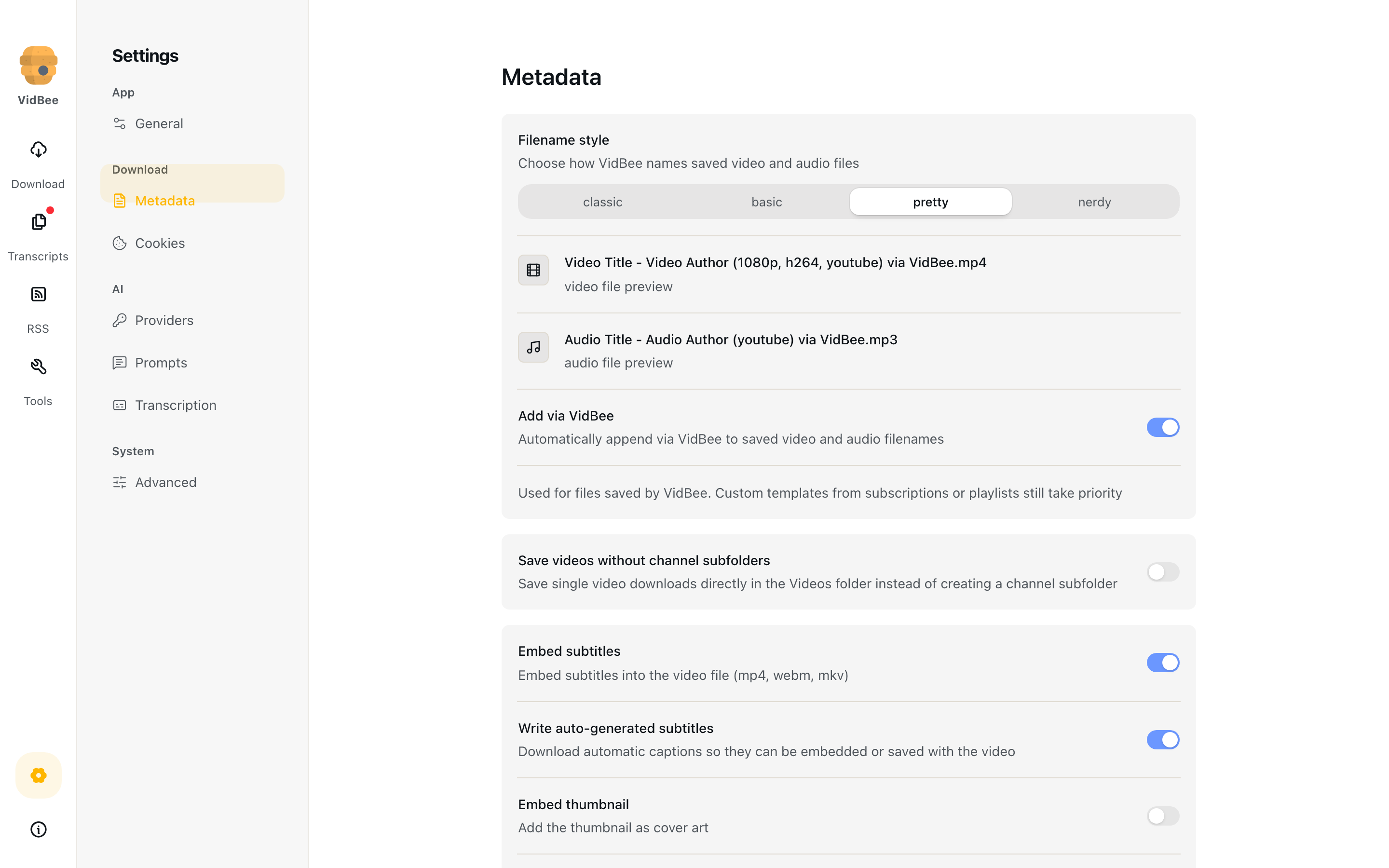
Metadata (written into the saved file when the source provides it)
- Filename style (
pretty,classic,basic,nerdy) and optional via VidBee suffix - Save single videos without a channel subfolder
- Embed subtitles, write auto-generated captions, embed thumbnail, embed metadata, embed chapters
Cookies — browser session or a cookies.txt file. See Cookies.
Advanced
- Maximum concurrent downloads (1–10)
- HTTP/HTTPS proxy
- Download source for engines and models (Official, China/ModelScope, or Auto)
- Custom yt-dlp configuration file
- Download finished notifications
- Remember last audio language