Subscriptions watch a feed and queue new items for download while VidBee is running. Use them for channels, playlists, podcasts, or any creator who publishes on a schedule. Each subscription can have its own folder, filename template, keyword filter, and auto-download rules.
Core features
- Auto-queue — new items go to Downloads while VidBee is running
- Per-feed rules — folder, keywords, tags, filename template
- Latest-only — skip the backlog and take the newest unseen item
- Podcasts — look up the host RSS with pod.link
- RSSHub — generate a feed when the site has no public one
- Manual queue — add a skipped item later
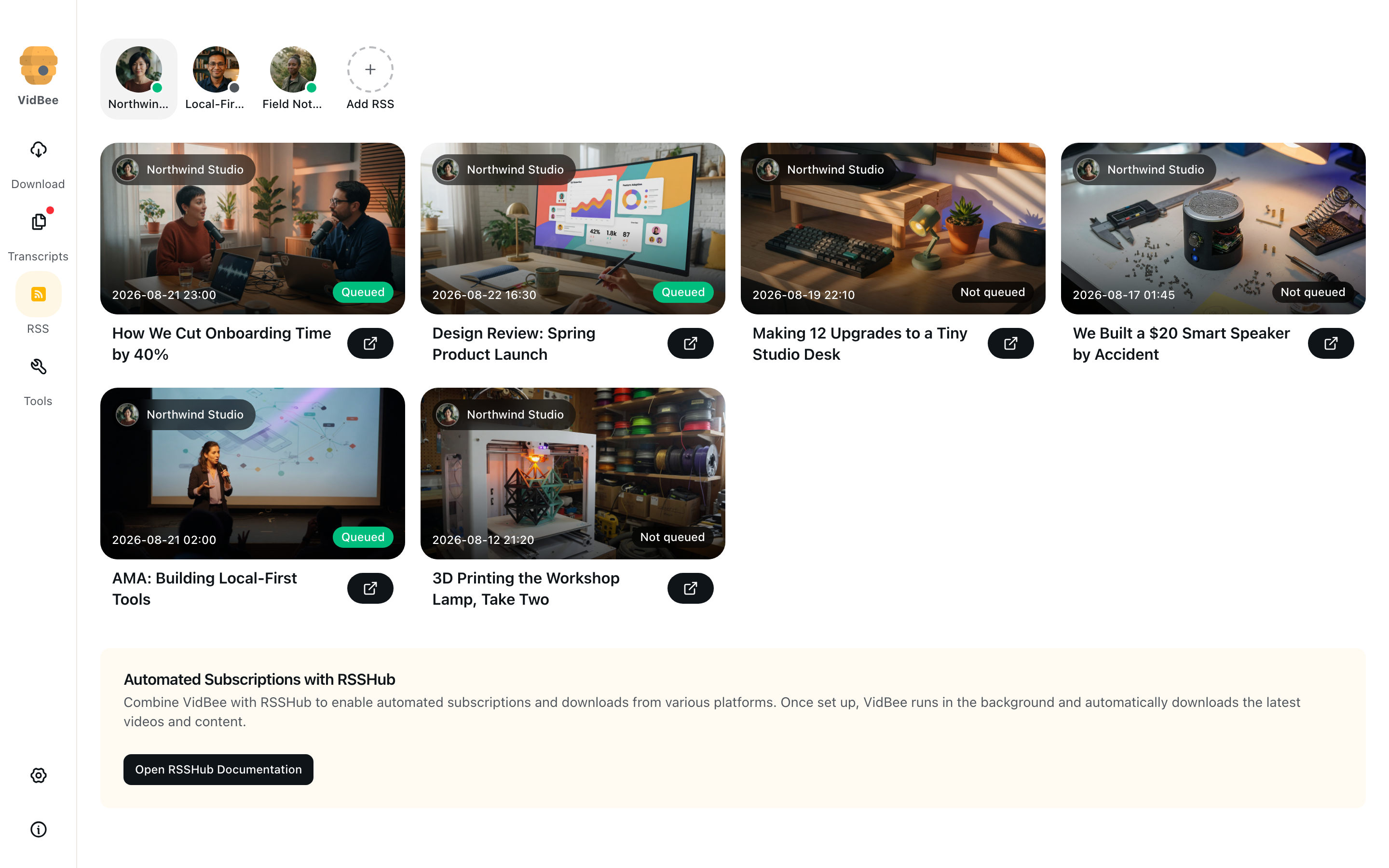
Avatars across the top are your feeds. The green/gray/red dot is status (Up to date, Checking, Idle, Failed). Hover an avatar for last checked time and the latest error if a fetch failed. Items below belong to the selected feed.
Queued means VidBee already added that item to Downloads. Not queued is waiting, was filtered out, or Auto download is off. A tooltip on the badge shows the live download status (pending, downloading, completed, failed) when the item is in the queue.
Add a subscription
- Open Subscriptions in the sidebar.
- Click Add subscription.
- Paste a feed URL. After a short pause VidBee detects the platform (YouTube, Bilibili, or custom) and shows the resolved feed.
- Optional: set a Custom directory (Browse). The default is
Downloads/Subscriptions. - Auto download (on by default) queues matching items without extra clicks.
- Download only the latest video skips backlog and takes the newest unseen item.
- Open Advanced Options for:
- Keyword filter (comma-separated). Only titles that match at least one keyword queue.
- Auto tags stored on queued downloads.
- Custom filename template (yt-dlp-style placeholders). Subscription templates override the global filename style.
- Click Add. VidBee starts an immediate refresh so the first batch appears without waiting for the next timer.
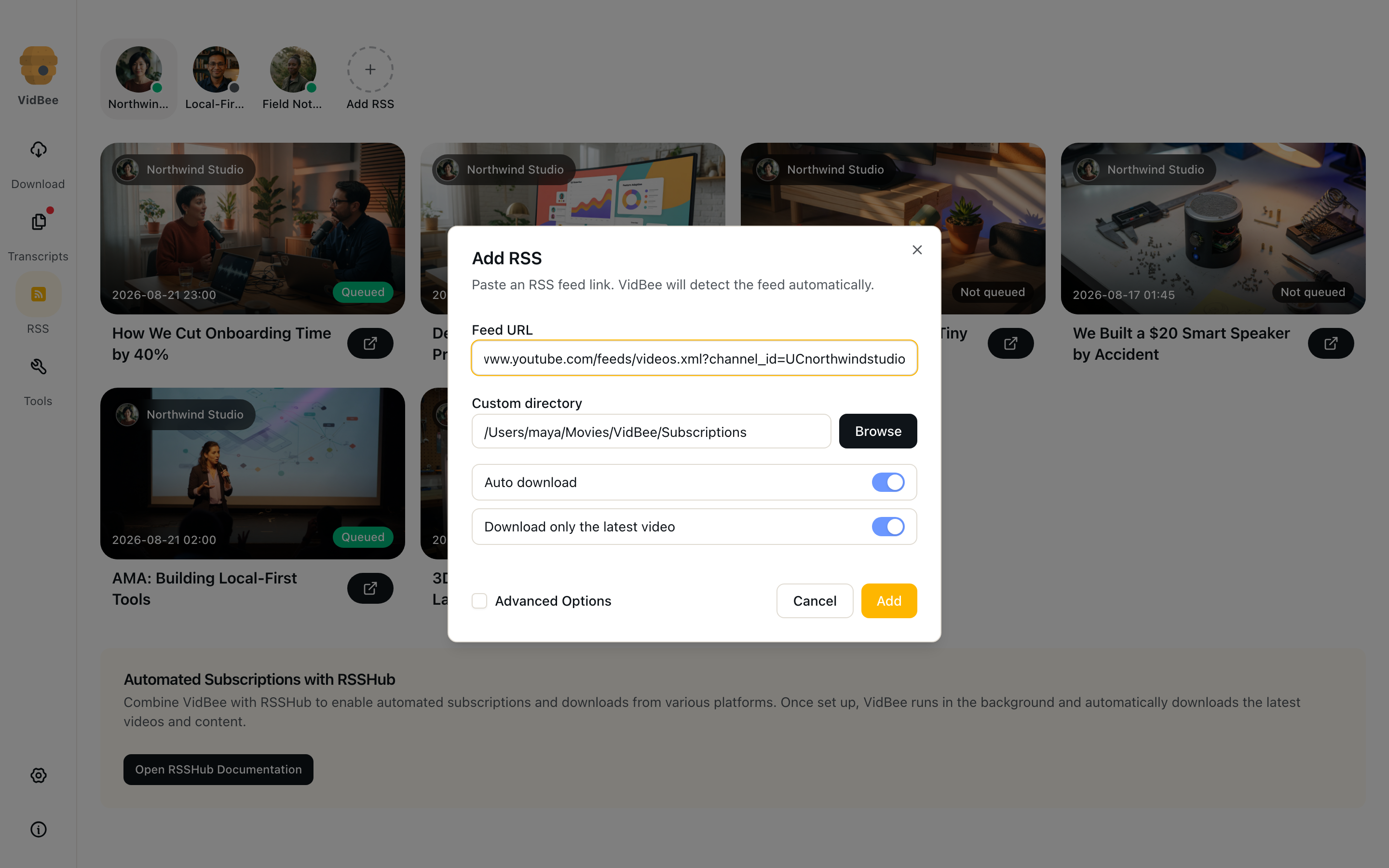
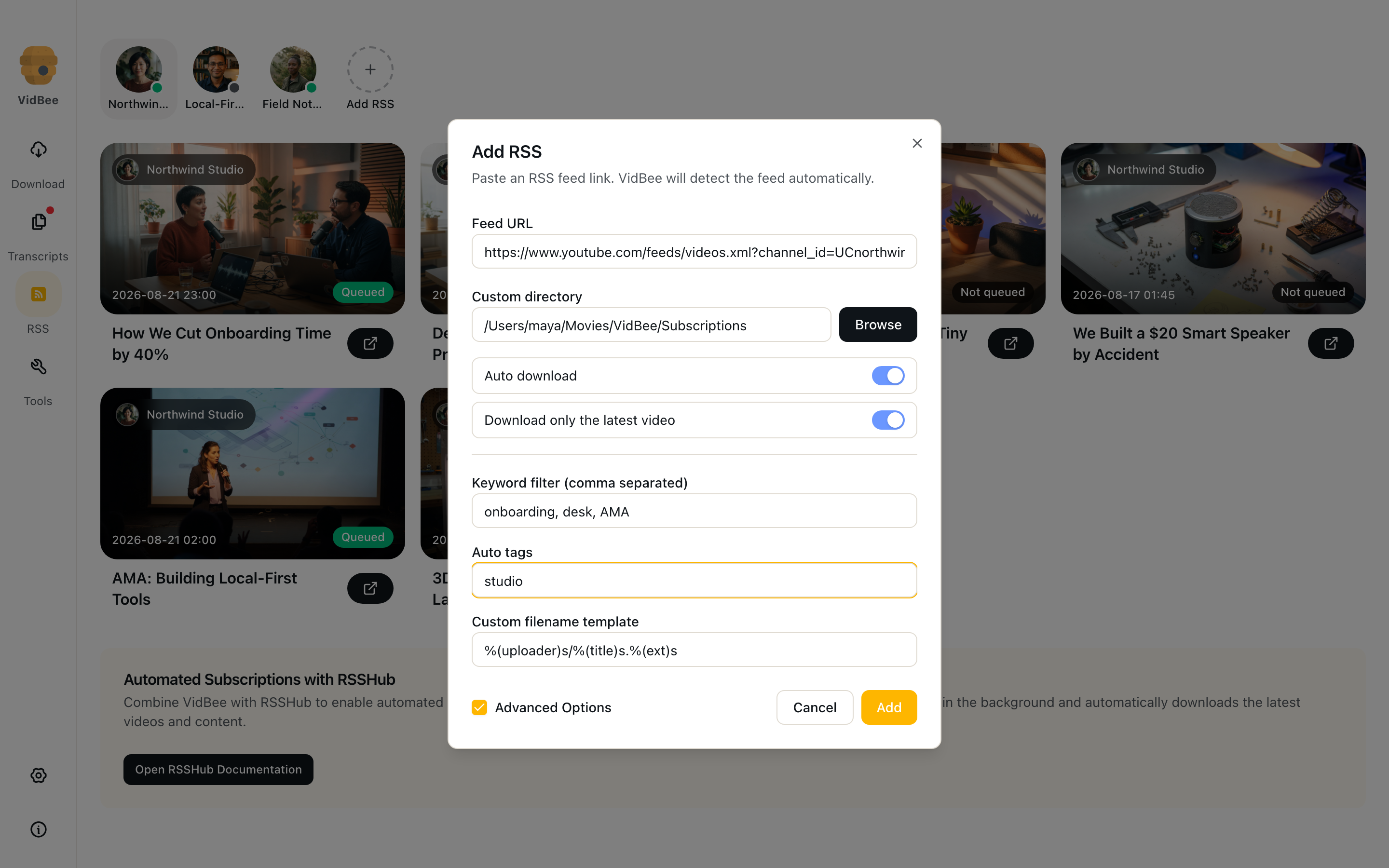
New subscriptions pick up Download only the latest video from Settings if you changed that default.
Manage a feed
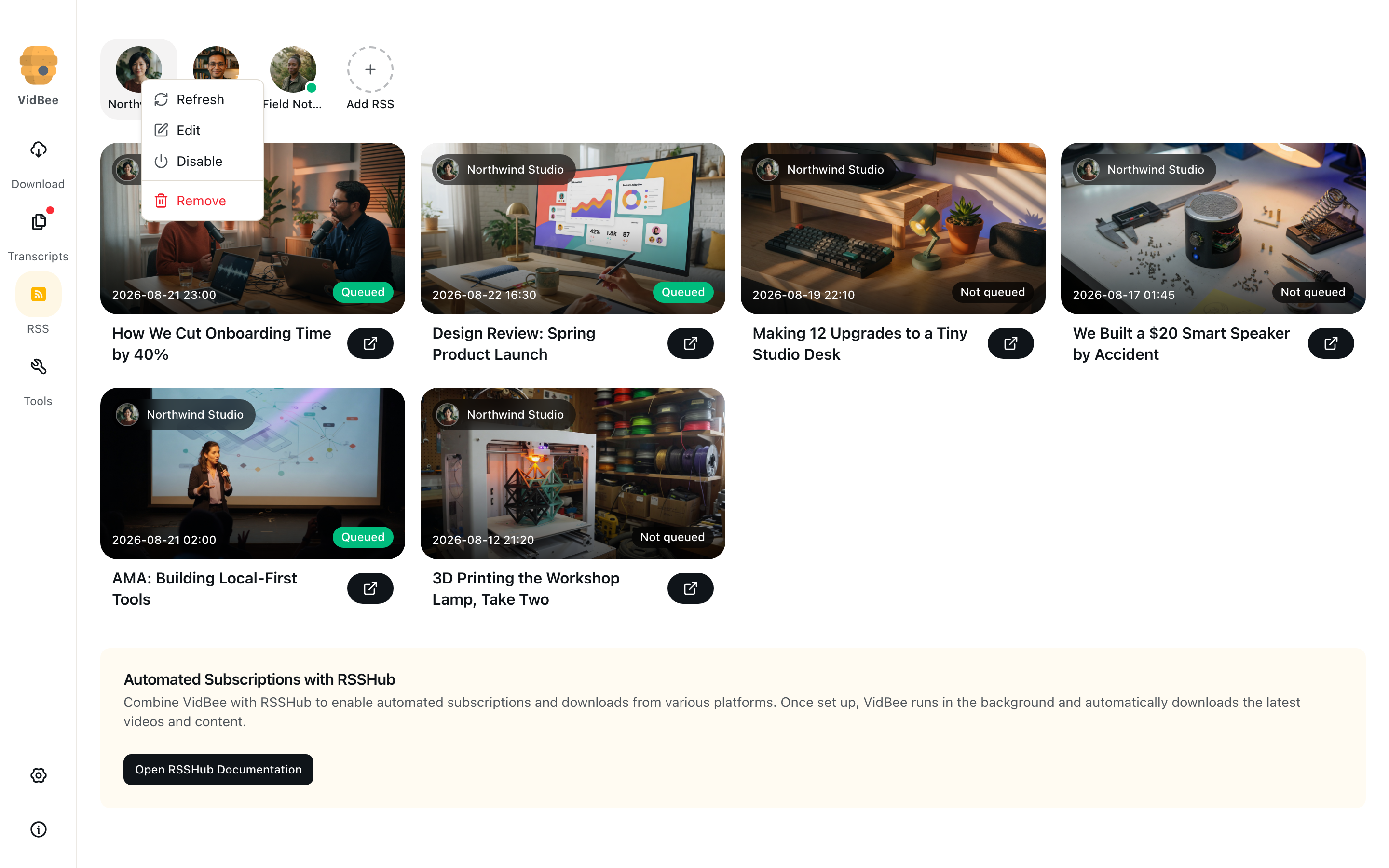
Right-click an avatar:
- Refresh — fetch the feed now
- Edit — change directory, auto download, latest-only, keywords, tags, template
- Enable / Disable — a disabled feed stays in the list but is not checked
- Remove — drop the subscription (already downloaded files stay on disk)
On a feed item:
- Open the video in the browser
- Add to download queue if it was not auto-queued (keyword miss, auto download off, or latest-only skipped it)
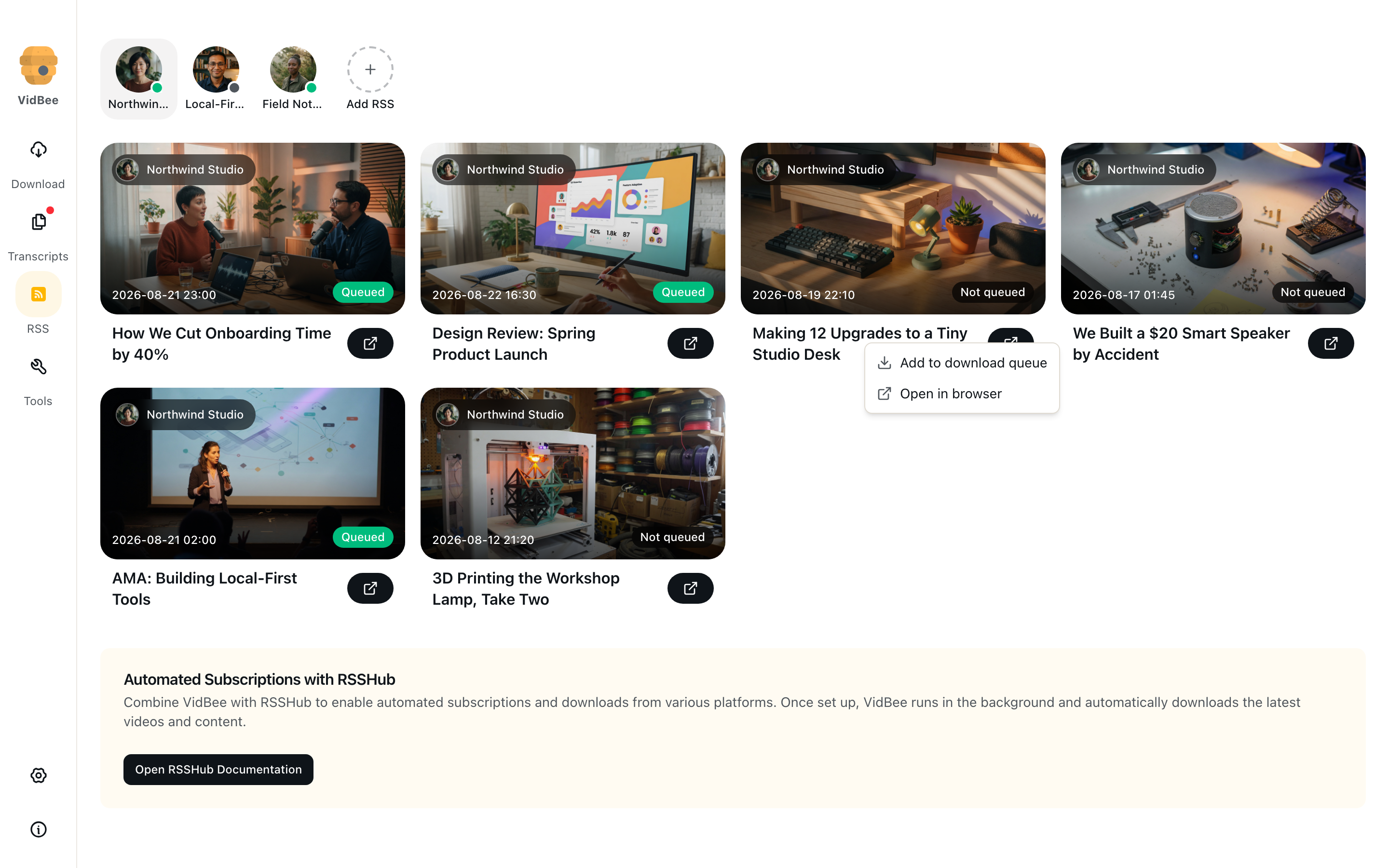
Queued items use your normal download settings: one-click quality, container, cookies, concurrency. They show a Subscription badge on the home list.
Get a feed URL
If you already have an RSS or Atom link, paste it. YouTube channel feeds look like:
https://www.youtube.com/feeds/videos.xml?channel_id=UCxxxxxxxxxxxxxxxxxxYou can often paste the channel or profile page instead; VidBee resolves it to a feed when the platform is known.
Find a podcast feed with Podlink
Most podcasts do not publish an obvious RSS URL. Podlink looks up a show by name (or by an existing feed URL) and copies the host’s real RSS feed.
- Open pod.link.
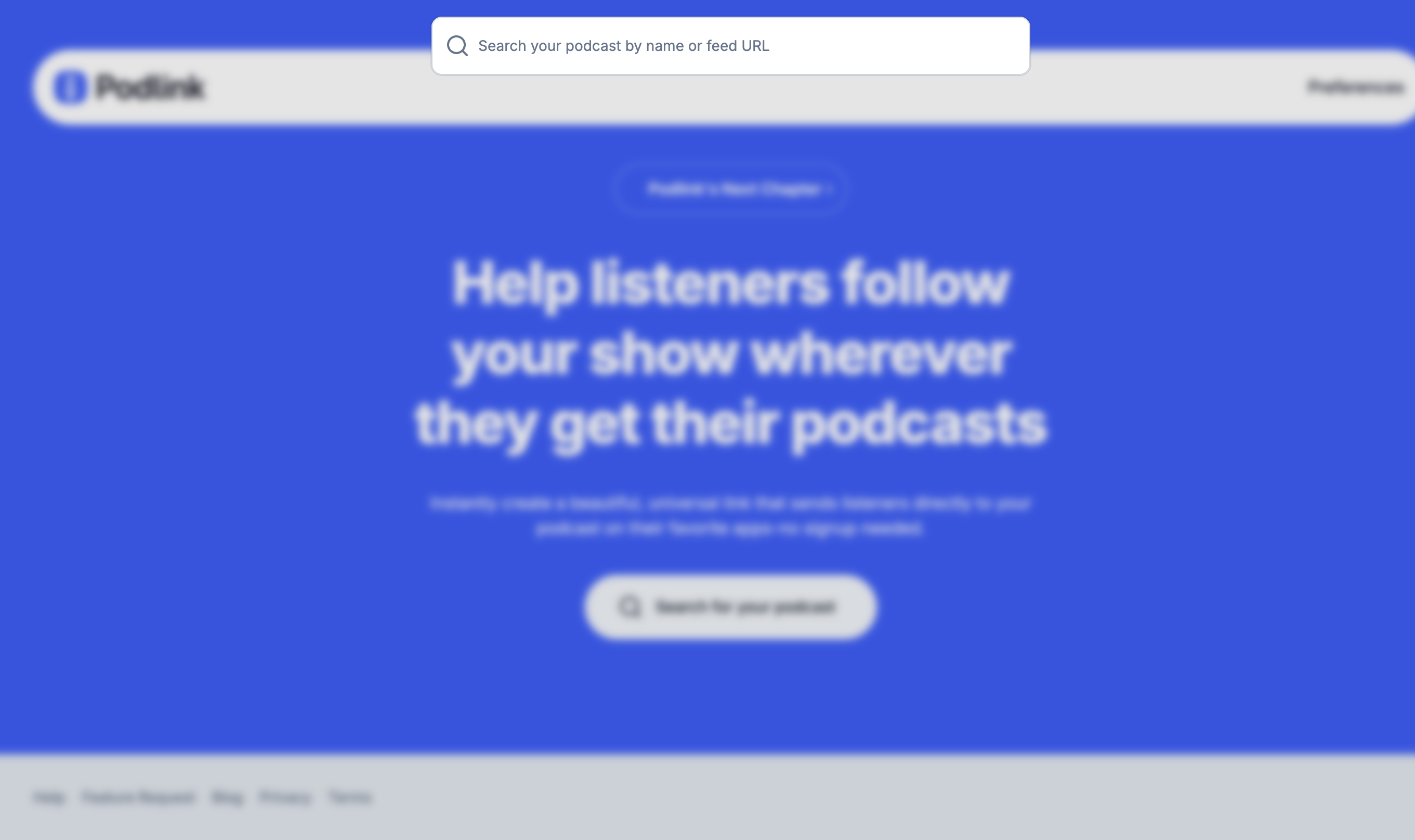
- Click Search for your podcast.
- Type the show name. You can also paste a feed URL if you already have one.
- Open the show page.
- Click ⋯ → Copy RSS Feed.
- In VidBee, click Add subscription and paste that copied URL.
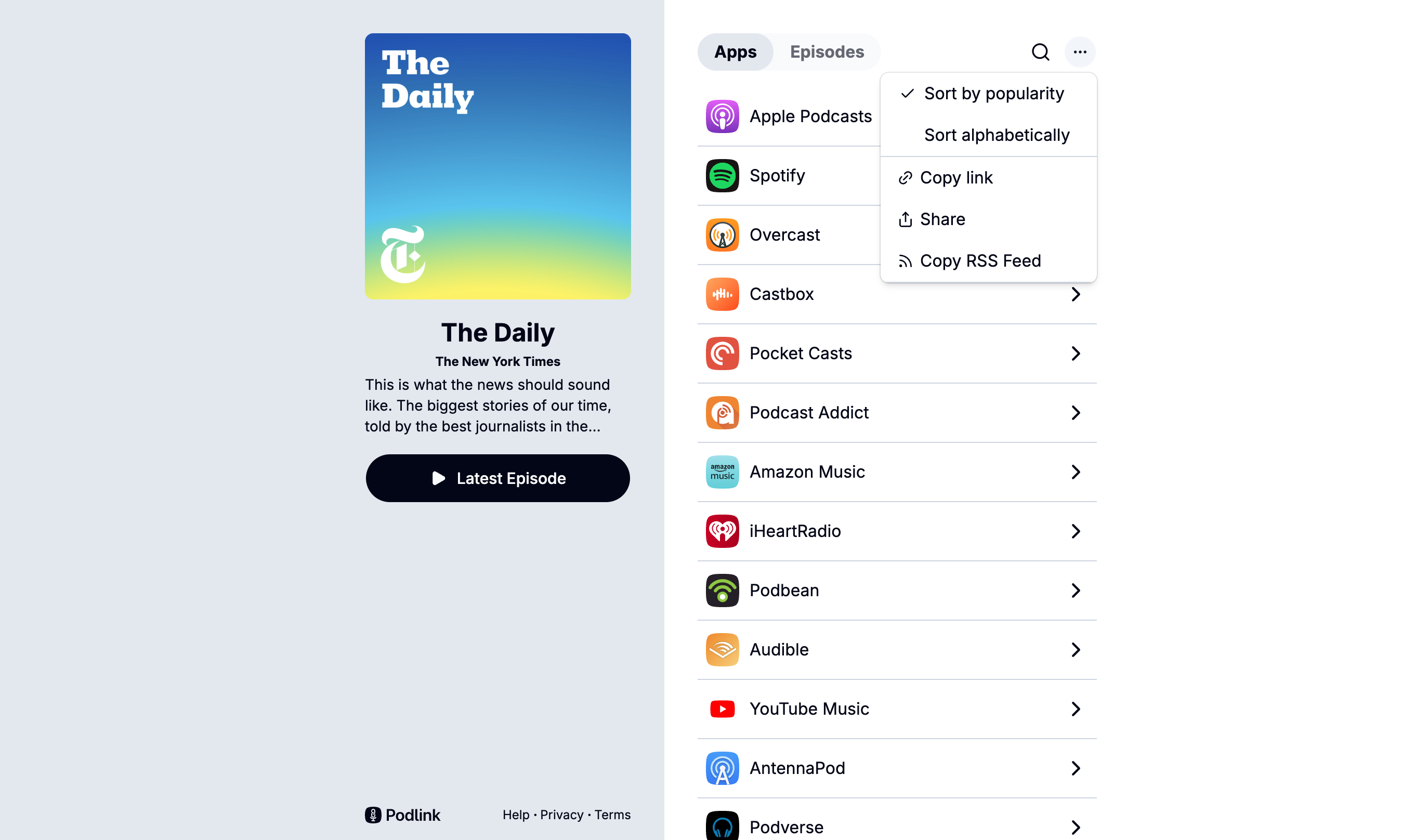
The copied URL is the host feed (for example https://feeds.simplecast.com/...), not https://pod.link/thedaily. A Podlink page is HTML. VidBee needs RSS or Atom XML, so pasting the page URL fails with Feed URL invalid.
Podcast episodes are audio. Set download to Audio (or turn on one-click with audio as the default type) so queued episodes save as M4A/MP3 instead of video. Download only the latest video still means the newest episode.
For sites without a public feed, generate one with RSSHub:
- Open the RSSHub routes documentation.
- Pick the platform (YouTube, X, and others).
- Fill in the route parameters and copy the feed URL.
RSSHub instances
Many examples use rsshub.app, but the official instance is behind Cloudflare and VidBee cannot read it. Use:
- A self-hosted RSSHub you control
- A public instance from the RSSHub instances guide
- Another community instance you can reach
Pick one that responds from your network. The in-app Open RSSHub Documentation card links to the same guide.
Troubleshooting
- Feed URL invalid: Open the URL in a browser. It should return RSS or Atom XML, not an HTML challenge page. A
https://pod.link/...show page is HTML — copy the feed with ⋯ → Copy RSS Feed instead. - Duplicate feed: Each feed URL can only be subscribed once.
- No new downloads: Confirm the subscription is enabled, Auto download is on, the feed has new items, and the keyword filter still matches.
- Only one file appears: Download only the latest video queues the newest unseen item, not the whole backlog. Turn it off and refresh to pick up more (items already seen stay skipped).
- Failed status: Hover the avatar for
lastError. If the host isrsshub.app, switch instance. If the site needs a login, configure cookies so queued downloads can finish. - Item already queued: Refresh will not duplicate a URL that is already in Downloads.