After a file finishes downloading, VidBee turns the soundtrack into text on this computer. Recognition uses local AI models. The audio is not sent to a cloud speech API, so interviews and other sensitive files can stay private and work offline once the models are installed.
The transcript is searchable, labeled by speaker, and stays next to playback so you can jump to any line.
Core features
- Speaker recognition — split voices, see talking time, and jump to each person
- Accurate transcriptions — pick a local model, then read timestamped text next to the player
- 100+ languages — Whisper auto-detects speech; other families specialize in CJK or English
- Search — find a word or phrase, highlight matches, copy a passage, seek to that moment
- Export — text, Markdown, subtitles, or a video with captions
- Privacy — speech stays on this computer; models run without a network after the first download
- Queue — drop many files; VidBee works through them in the background
Open Transcripts in the sidebar, or open a finished download and start a transcript from there. You can also import a local audio or video file with Add audio or video, or drop/paste a media file onto the Transcripts page.
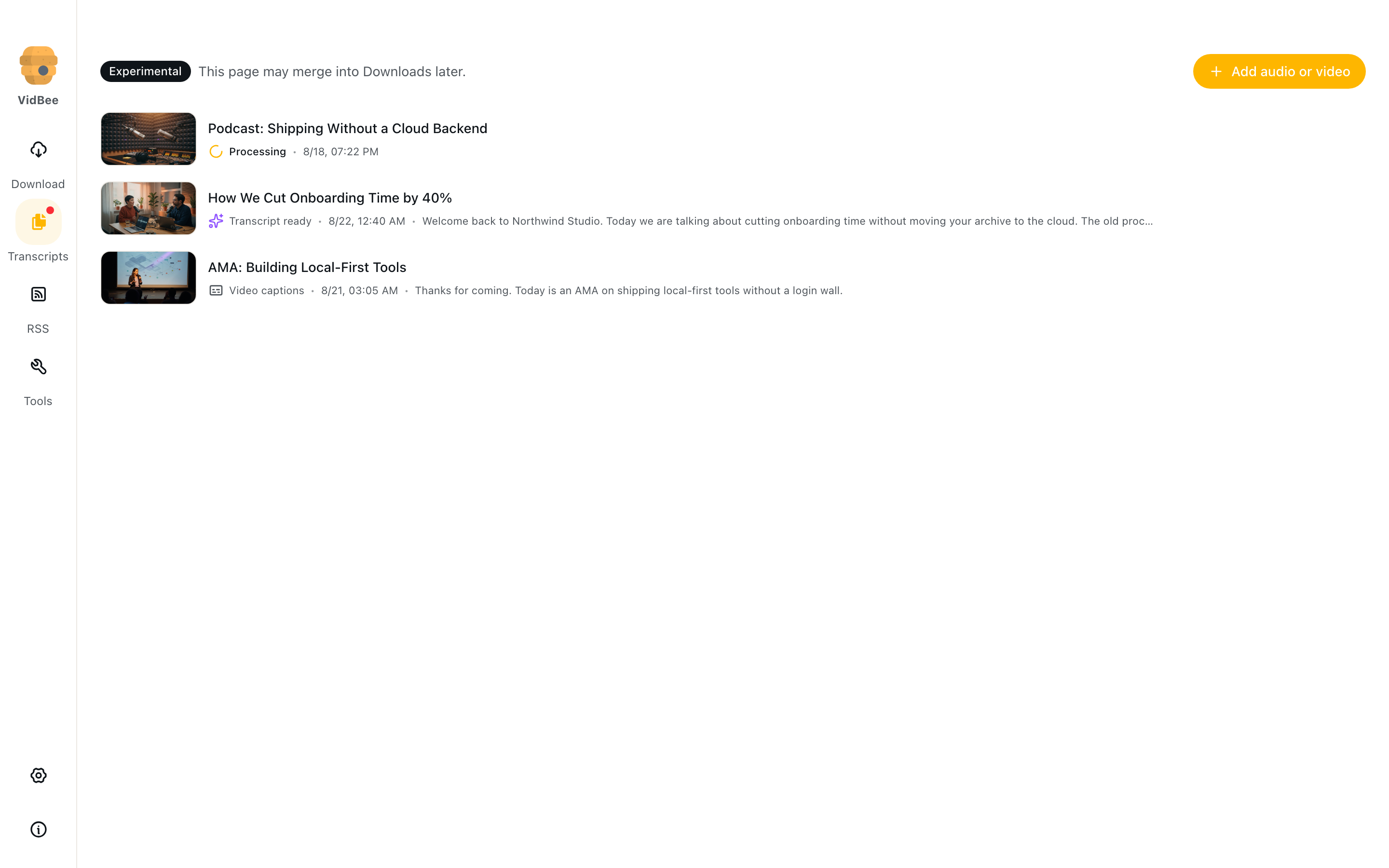
The library is marked Experimental and may later merge into Downloads. Status on each row:
- Queued / Processing / Retrying soon — a local ASR job is waiting or running
- Transcript ready — local speech-to-text finished (sparkle icon)
- Video captions — a subtitle track from the download (captions icon)
- No speech — the file was scanned and had no voice
- Cancelled or an error line — retry from the row or the transcript page
How to start it
- Download a video or audio file, import one from disk, or drop a file onto Transcripts.
- Wait until the media is saved.
- Click the item in Transcripts, or use Transcribe / View transcript on the download row.
- Optional: enable Transcribe after download in Settings → Transcription. New successful downloads then queue a background transcript. Files with no speech are skipped. Turning the setting off does not cancel jobs already queued.
You can queue many audio or video files at once — a folder of interviews, a podcast backlog, or a batch of imports. Recognition has a concurrency cap (default one job) so models do not fill RAM. Raise Maximum number of active transcripts if this computer has enough memory. A long file stays in Processing until it completes. You can Stop a running job and Retry a failed one.
First use downloads the selected ASR models to disk. A banner shows progress. After that, transcription does not need the network. Settings → Transcription can redownload models, switch the active model, or delete unused ones.
Read a transcript
The transcript page keeps the media on the left and the text on the right. Drag the handle to resize or collapse the text panel.
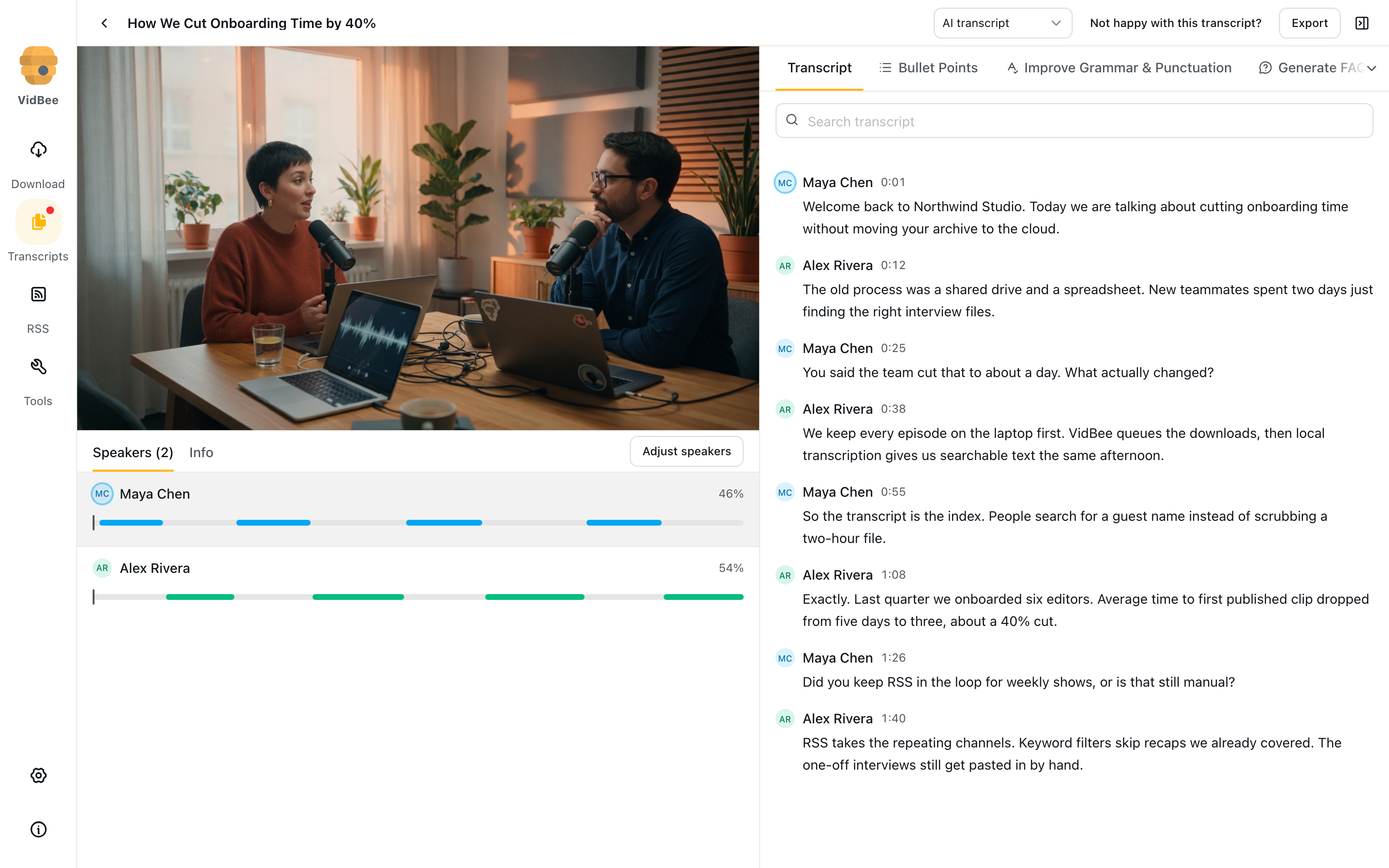
Player
- Play, pause, seek, volume, mute, playback speed, skip ±15s, fullscreen
- Optional on-player subtitles
- If in-page playback fails, you can still read the transcript; open the file from Downloads if you need another player
- A now playing bar stays available if you leave the page; it remembers position
Search and captions
- Each line has a timestamp. Click a line (or a word) to jump in the player
- Search finds a word or phrase across the transcript (including speaker names). Matches highlight in the list; next/previous moves between them
- Drag to select a passage, then copy it or share image of the quote
- Follow-mode keeps the current line in view; scroll away to pause, then Return to the position playing now
Speaker recognition
VidBee separates overlapping voices and labels each speaker. Colored avatars and talking-time bars sit under the player — click a bar to jump to that person.
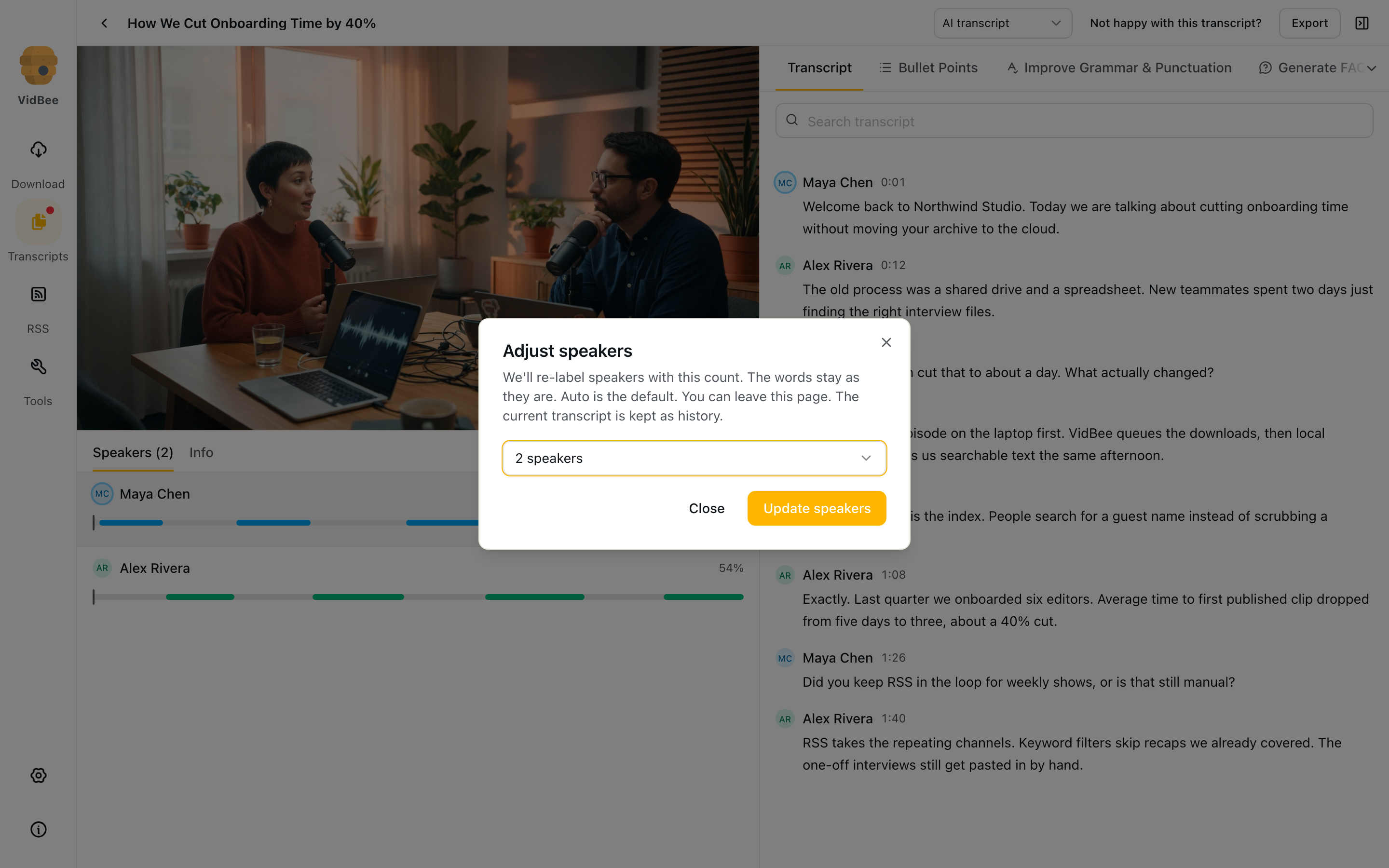
- Adjust speakers pins a count (Auto, 1, 2, …) and re-labels the current text without re-running recognition
- The Info tab shows channel, duration, file, model, language, speaker count, and segment count
Sources
VidBee can show:
- Video captions pulled with the download, including per-language and auto-caption tracks
- AI transcript from local speech-to-text
When both exist, use the source switch in the header. The sparkle icon is local ASR. The captions icon is a subtitle track.
Accuracy and models
Pick a local model that fits this computer: Tiny for speed, Small or Base for typical machines, larger models when you need more accuracy. Playback stays in sync with the text — click a line to hear that moment.
Not happy with this transcript? opens the model picker, downloads a larger model if needed, and re-runs recognition. The current transcript is kept as history. You can leave the page while it runs.
If the result is No speech, use Transcribe anyway when you think the detector was wrong (quiet voice, mixed music).
A local transcription check
In a development build on September 30, 2026, we imported a new 12-second video made from our own spoken text, with no subtitle track. A cached local model produced three timed segments. It recognized “find the exact moment,” but rendered the name VidBee as “VITB” and “spoken” as “spokane.” Read the transcript against the recording before sharing it.
Searching for “moment” found the passage. Clicking that word moved playback to about 6 seconds. TXT and Markdown exports contained the same text shown in their previews. This check used a locally generated recording and an already installed model; it did not test the first model download, every language, or every export style.
Browser transcripts
Install the VidBee Transcript extension to read captions in a Chrome or Edge side panel while the video plays. Search the transcript, follow playback, jump to a timestamp, copy text, and export TXT, SRT, or WebVTT.
YouTube and Bilibili work in the page without Desktop. Desktop-assisted caption fetching and Overview require a compatible desktop build. The official v2.1.0 release predates the new Transcript/Overview bridge; do not assume those bridge features work with that release. This sidebar does not run local speech-to-text; for that, download or import the file and transcribe it here.
Languages
Whisper-family models cover 100+ languages and auto-detect what is spoken. You do not have to set a language first.
Other families trade breadth for strength:
- SenseVoice — CJK + English, including Cantonese
- Parakeet — English-first
- Qwen3-ASR — another local model option; check its language and hardware notes in Settings
Settings → Transcription lists size, language notes, and a recommendation for this PC (OS, GPU, RAM, cores, UI language).
Export
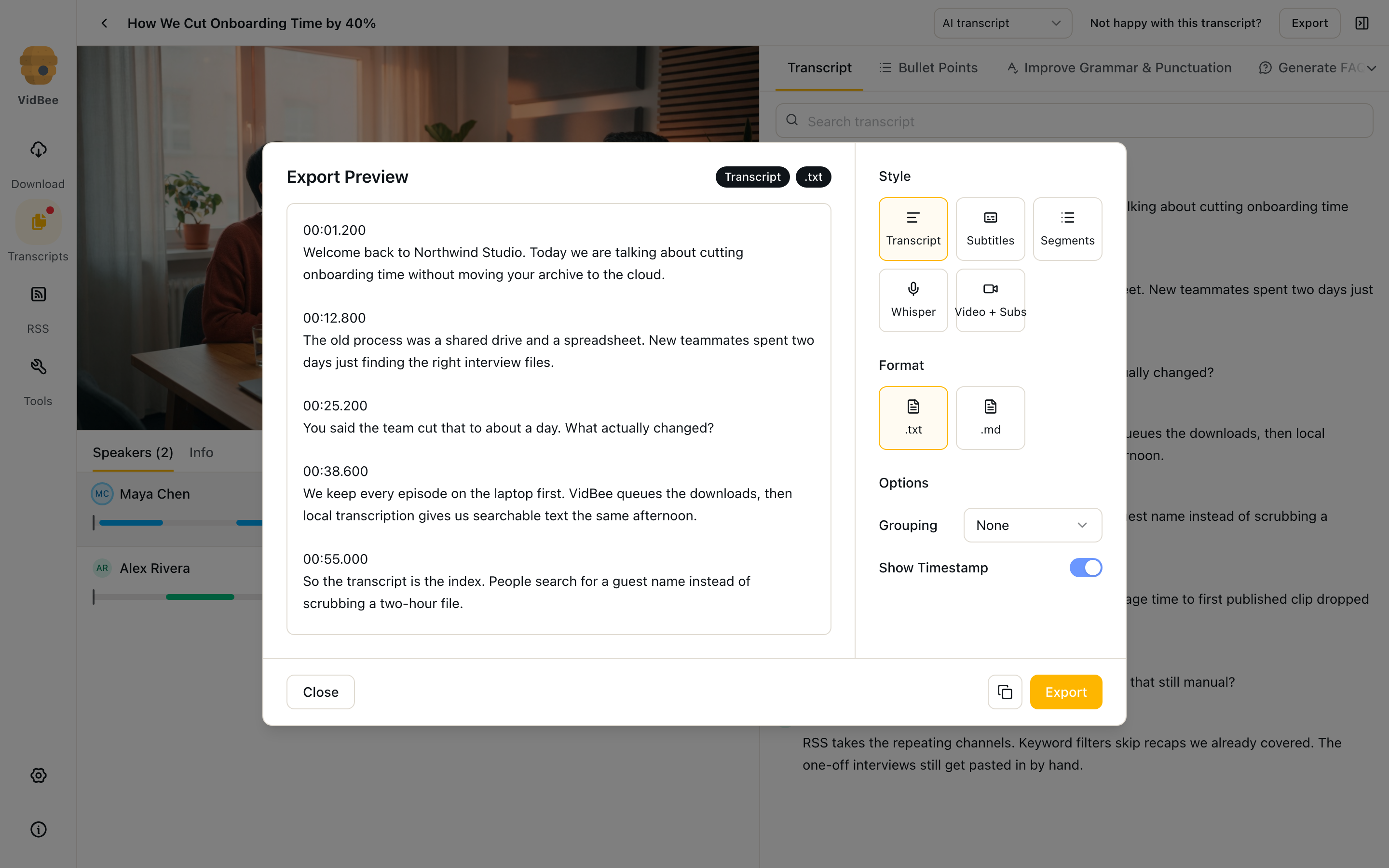
Export previews the current text, then copies it or saves a file.
Styles:
- Transcript — readable prose
- Subtitles — cue list (SRT-style timing)
- Segments — one block per timed span
- Whisper — speaker-aware dump
- Video + Subs — mux or burn captions into a new video
Text formats are .txt and .md. Options include grouping (None, Words, Sentences) and Show timestamp.
For Video + Subs:
- Soft — mux a subtitle track. Players can turn captions on or off. Fast, no quality loss
- Hard — burn captions into the picture. Re-encodes the video; captions cannot be turned off
Audio-only files export text, not a video. You can cancel a long video export.
Transcription settings
Settings → Transcription
- Transcribe after download
- Maximum number of active transcripts
- Model catalog with size, language strength, and a recommendation for this PC (OS, GPU, RAM, cores, UI language)
Download, use, or delete a model without affecting the others. Language coverage is in Languages.
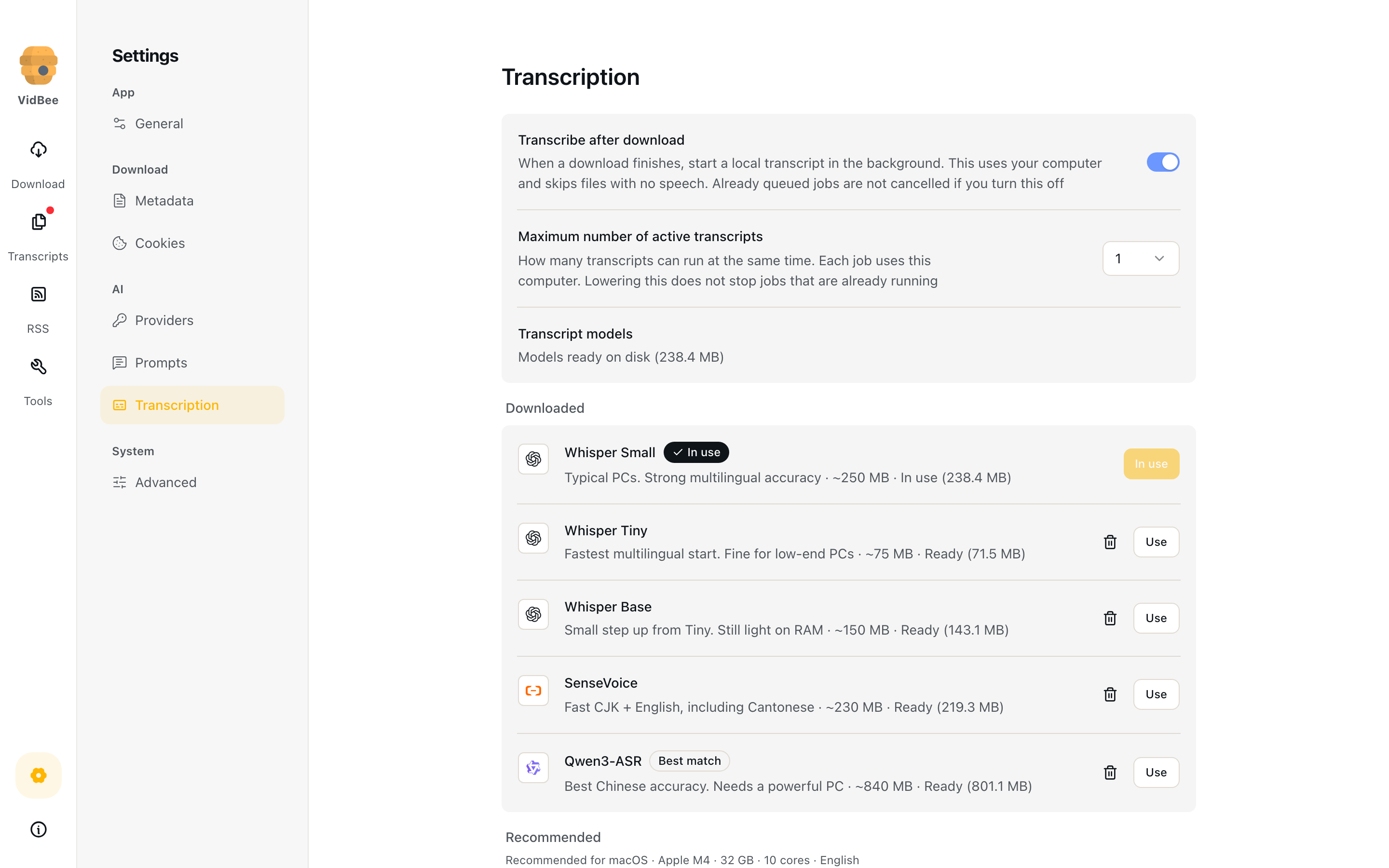
Settings → Advanced → Download source switches GitHub vs China (ModelScope) mirrors when model downloads are slow or blocked.
Privacy
Transcription is built for files that should not leave the machine.
- On-device speech — local models do the recognition. VidBee does not upload audio for speech-to-text.
- Offline — after models are on disk, you can transcribe without a network.
- Local files — media and transcripts stay in folders you control.
- AI is separate — AI prompts send transcript text only to the provider you enable. Ollama and LM Studio keep that step local too. API keys stay in the app.
From a finished transcript you can run those prompts for summaries, FAQs, and other views of the same text.