AI prompts read a transcript and return Markdown you can copy or share. VidBee sends the text to the provider you configure — OpenAI, Anthropic, Google, xAI, Groq, Deepseek, OpenRouter, Azure, Hugging Face, local Ollama or LM Studio, or a custom OpenAI-compatible endpoint. Media files stay on this computer. API keys stay in the app and are not uploaded to VidBee.
Write a custom prompt once, save it, and run the same workflow on any transcript. Built-in prompts cover the jobs people repeat most (summary, FAQ, stats, translation, mind map).
Core features
- Built-in prompts — summary, FAQ, stats, translation, mind map, grammar, paraphrase
- Custom prompts — write once, save it, run it on any transcript
- Many providers — OpenAI, Anthropic, Google, xAI, Groq, OpenRouter, local Ollama / LM Studio, or a custom endpoint
- Text only — media stays local; API keys stay in the app
- Copy and share — Markdown, or a share image
- Background runs — leaving the page does not abort the job
Built-in prompts
These ship with VidBee. Titles in the UI follow the interface language.
- Bullet Points — scannable summary grouped by theme
- Improve Grammar & Punctuation — cleaned prose, same meaning, no new claims
- Generate FAQ — questions and answers grounded only in the transcript
- Extract Statistics — numbers, dates, amounts, and rates (list + table)
- Paraphrase Content — a shorter rewrite in the same language
- Create a mindmap — one Mermaid
mindmapof the topics - Translate — into the current interface language (
{{uiLanguage}}is replaced before send)
Each preset asks the model to skip preambles and keep list markers on the same line as the item.
Run a prompt on a transcript
- Finish a transcript (captions or local ASR). Empty or “no speech” files cannot run a prompt until there is text — use Transcribe anyway if needed.
- Connect a provider in Settings → Providers and click Use on it.
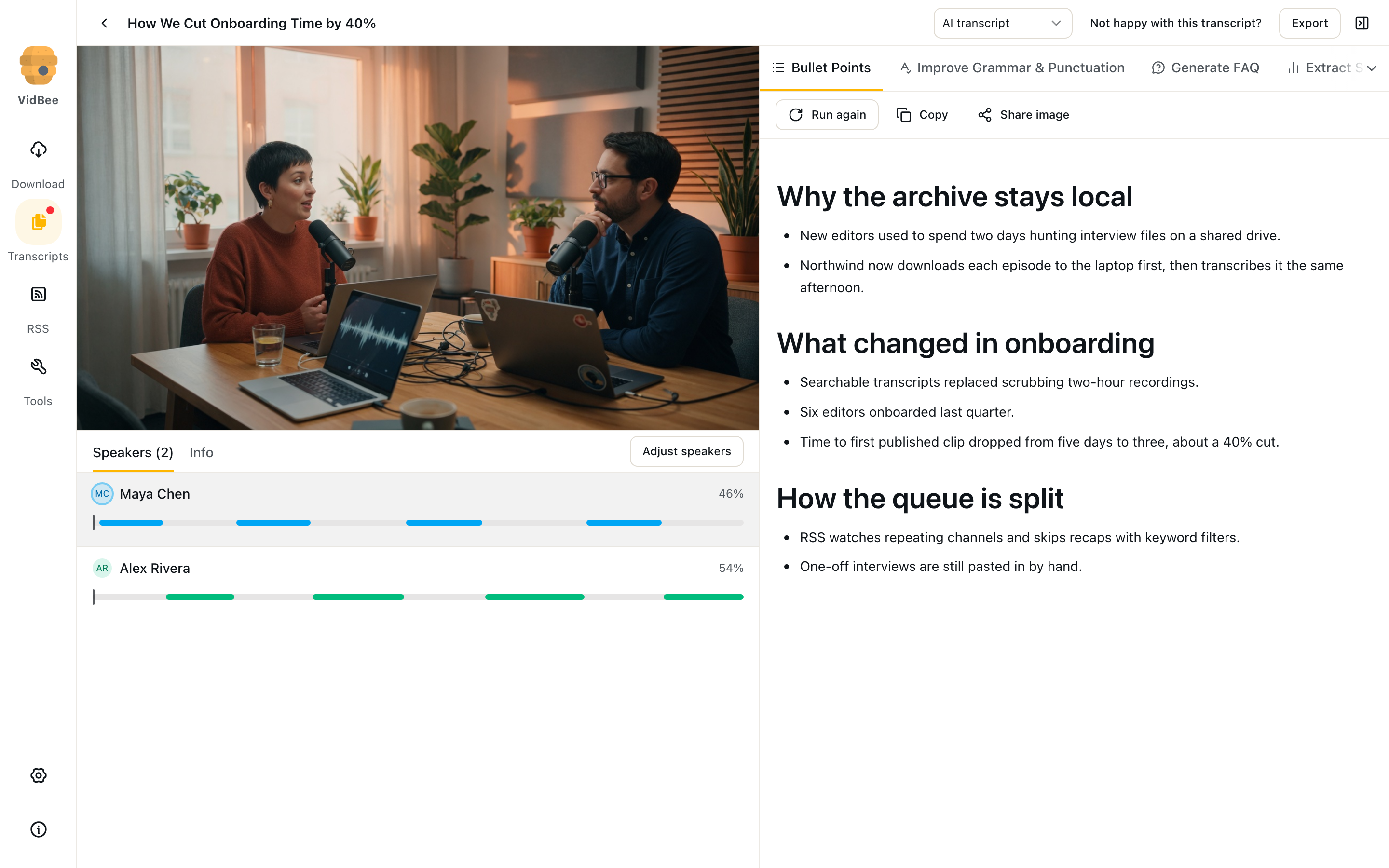
- Open the transcript. Caption tabs sit next to prompt tabs. Extra prompts hide under All prompts.
- Click a prompt such as Bullet Points. VidBee starts it automatically the first time.
While it runs:
- Thinking shows model reasoning when the provider sends it, with elapsed seconds
- Stop aborts the stream without leaving the page
- Run again regenerates
- Copy copies the Markdown
- Share image renders a card (title, cover, prompt result) you can download, copy, or send through the system share sheet
The run lives in the main process. Leaving the page does not abort it. Come back to the same transcript and tab to read the result.
Settings → Advanced → Share watermark adds the original title, author, and VidBee branding on share images.
If something fails, the pane explains what to do (missing provider, bad API key, empty model ID, network, empty output) and links to Open provider settings.
Providers
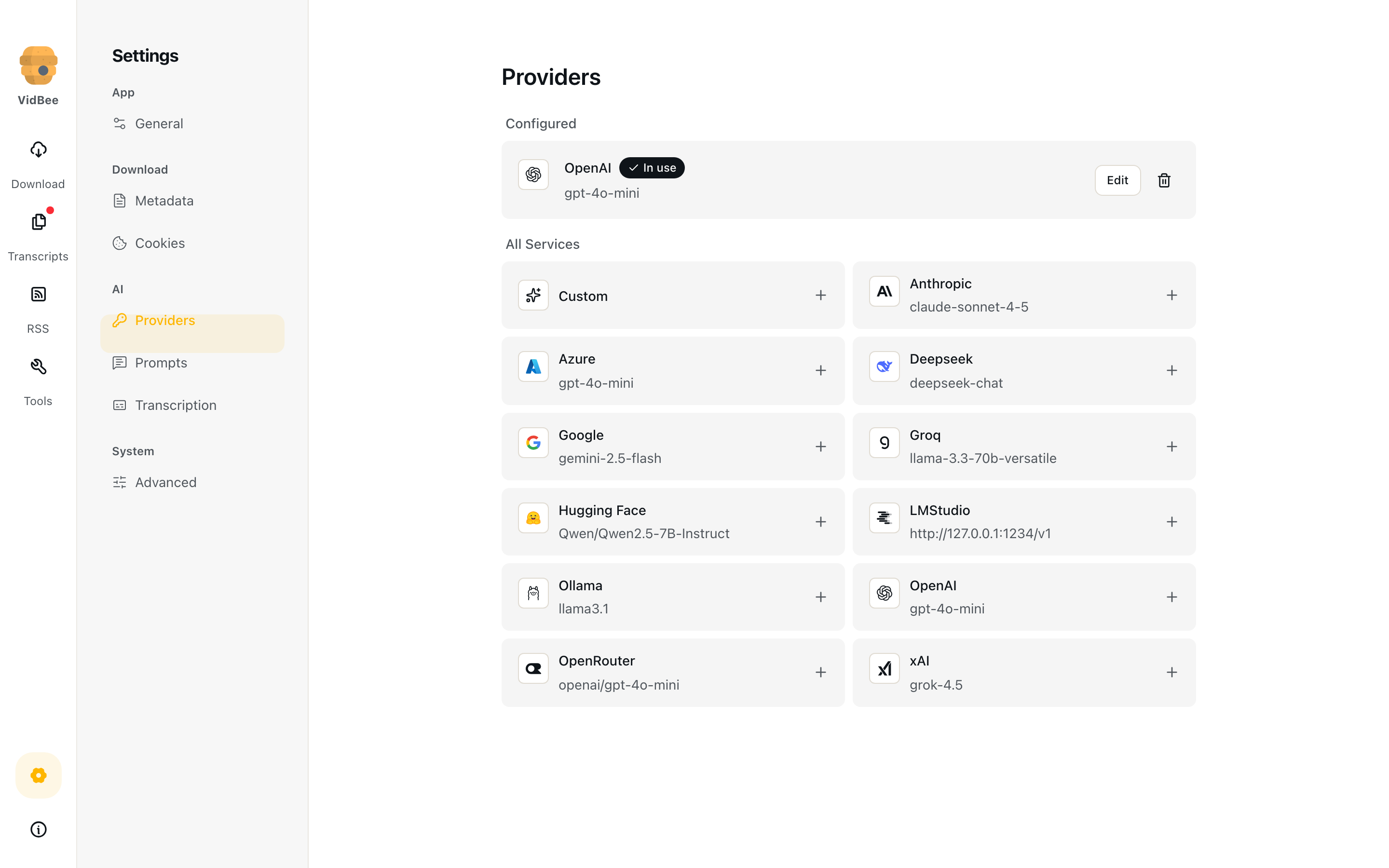
Settings → Providers is the catalog of services VidBee can call. Use the one you already trust, or keep the step fully local. API keys never leave this computer.
| Provider | Typical use |
|---|---|
| OpenAI, Anthropic, Google, xAI, Groq, Deepseek, OpenRouter, Azure, Hugging Face | Cloud APIs with a key |
| Ollama, LM Studio | Local models, no key required |
| Custom | Any OpenAI-compatible /v1 endpoint and your own base URL |
For a preset, you usually enter API key and Model ID. Custom also asks for Base URL. Test connection sends a short ping and shows a reply preview before you save. Use makes that provider the one transcript prompts call. You can edit or remove a provider later.
Edit the prompt list
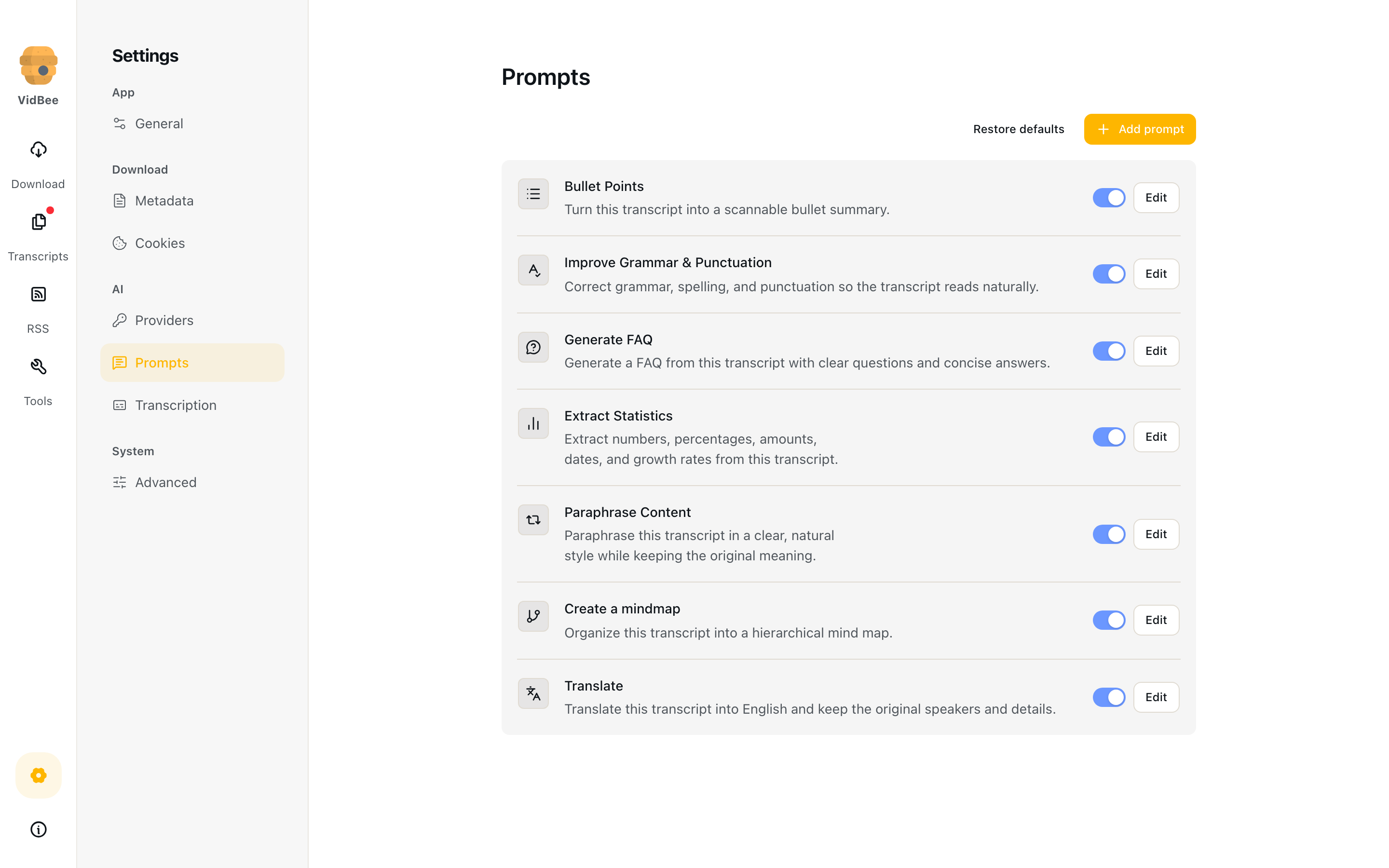
Settings → Prompts is the catalog.
- Toggle a prompt to hide it from transcript tabs
- Edit changes title, icon, and instructions
- Add prompt creates a custom workflow you can reuse on every transcript
- Restore defaults re-inserts missing built-ins without wiping custom prompts
- The editor can Run against a built-in sample transcript so you can check the wording before you use it on real files
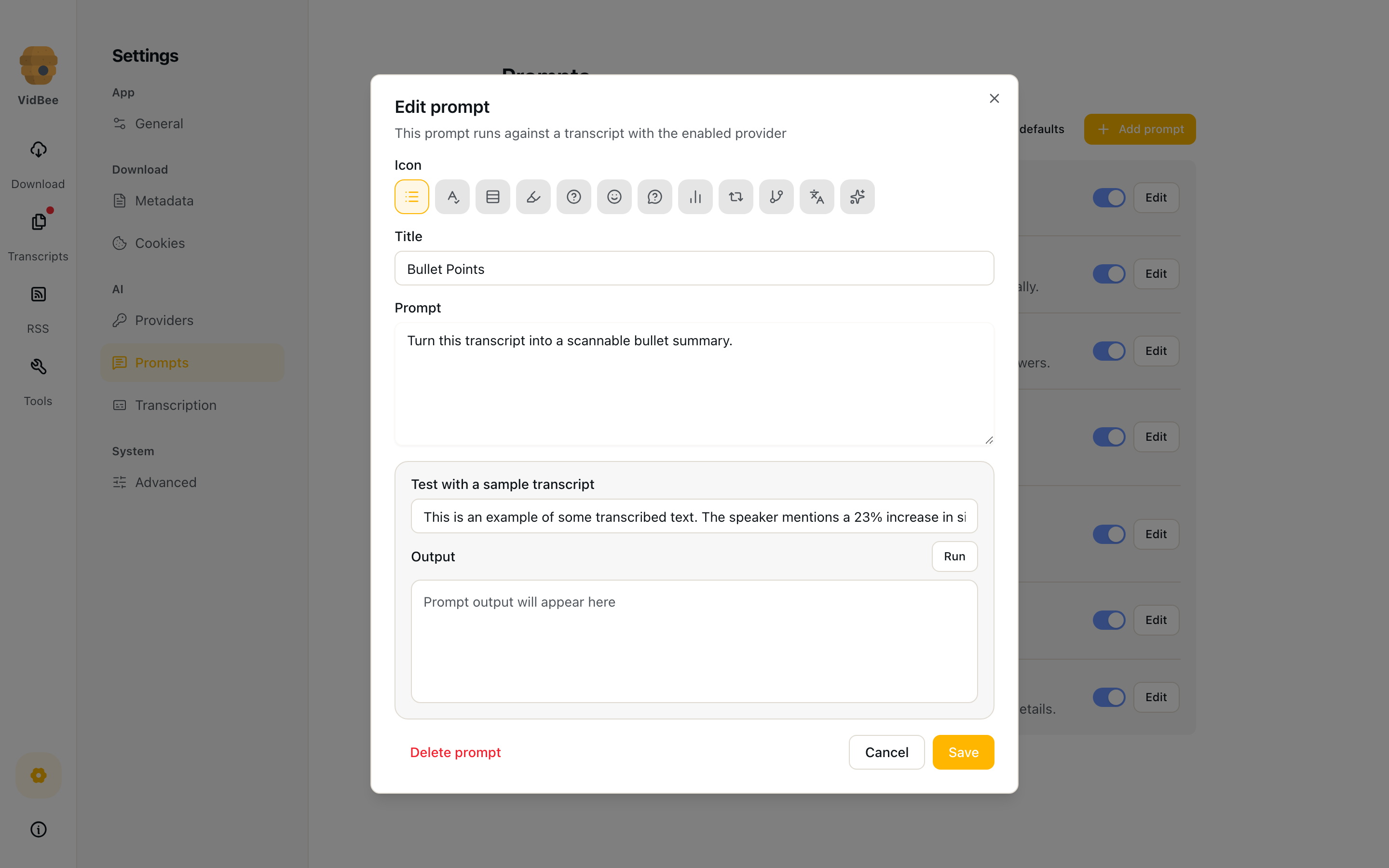
Prompt text can include {{uiLanguage}}. VidBee replaces that token with the current interface language name (for example English or 中文) before the request is sent.