VidBee Desktop with prepared demo data. Download and recognition waits are omitted.
Start with a YouTube link in VidBee, then keep the saved video and selected transcript on your computer.
Download VidBee for desktopHow it works
Convert a YouTube video to text by reading its saved captions or recognizing its audio locally. If this is your first transcript, choose which words you need before following the steps below.
Before you start
- Install VidBee and copy a YouTube link you have permission to download.
- Keep a connection while the video saves.
- For a fresh transcript, download a speech model once: the files that let VidBee recognize speech on this computer. Saved captions skip that recognition step.
Paste the YouTube link and save the video
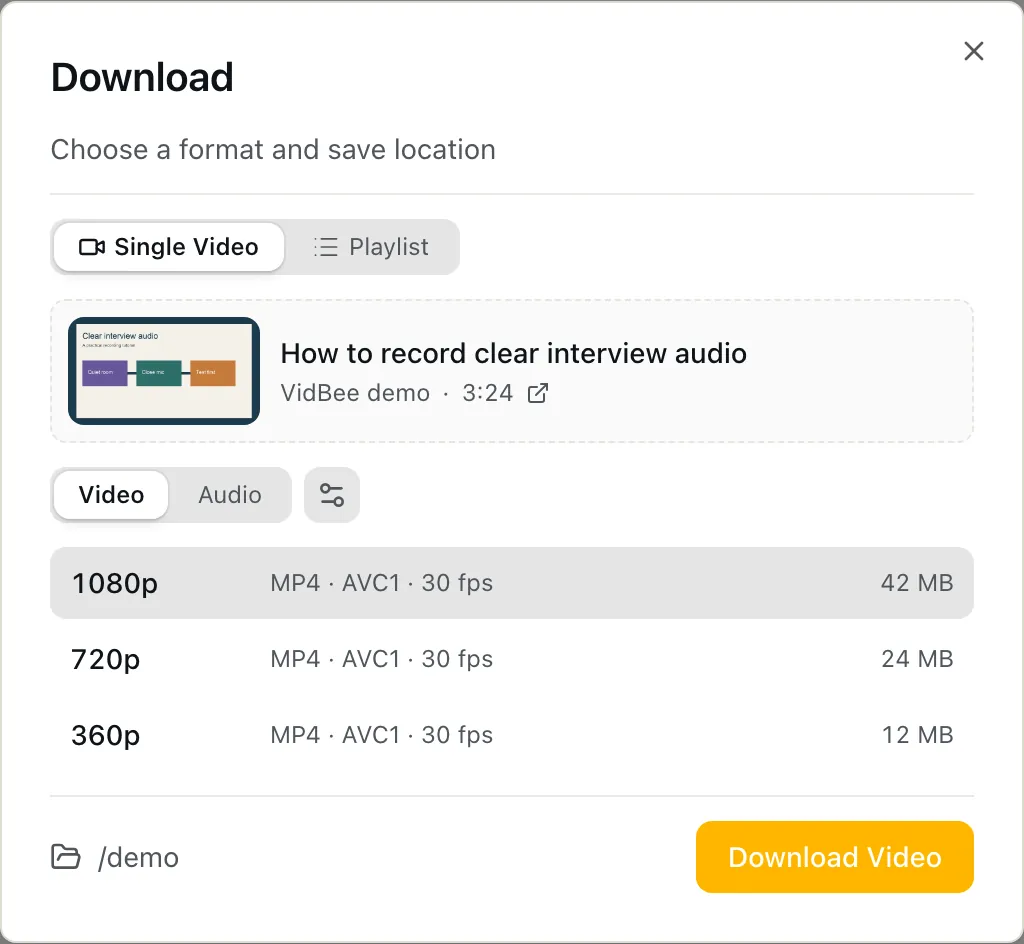
Open Home and click Add URL. Paste the link into Enter Video URL, then click Fetch. Choose a video format and click Download Video. If One-Click Download is enabled, VidBee uses your defaults and skips format setup. To save captions too, turn on Settings → Metadata → Download subtitles and select the subtitle languages before downloading. The video must finish saving before local recognition can use its audio.
VidBee Desktop with demo data. Choose a video format after Fetch, then use Download Video. This example uses prepared metadata. View full size Choose saved captions or a local transcript
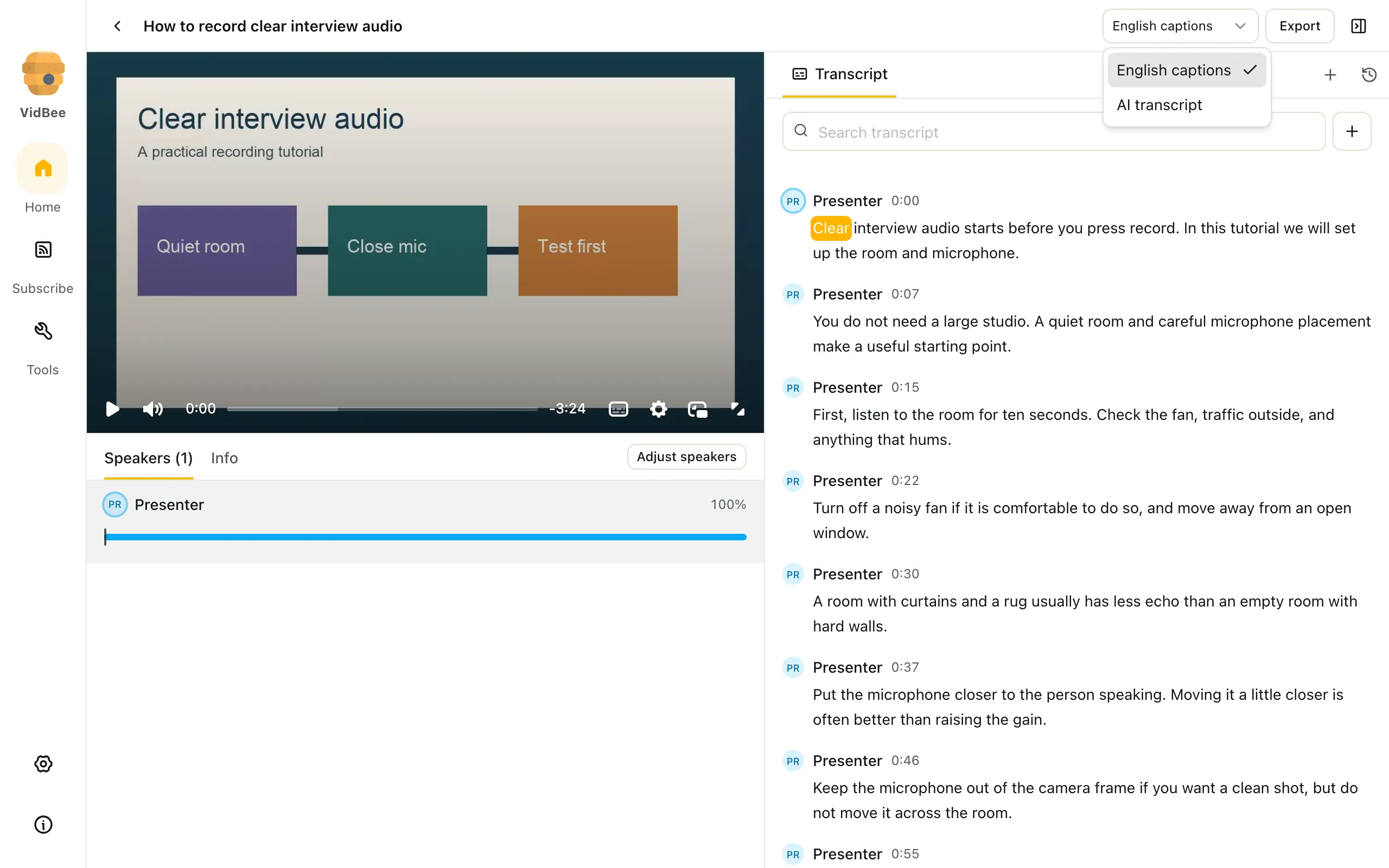
Open the finished item on Home. When several sources are available, open Transcript source and choose a saved track such as English captions. For new recognition, choose AI transcript. Let any queued job finish; if that source is idle, click Transcribe. The first use downloads a speech model, and later recognition runs on this computer. Settings → Transcription shows the model marked In use. If the download failed, resolve that first: a URL alone has no saved audio to recognize.
VidBee Desktop with demo data. The saved caption track and the local AI transcript are separate sources. View full size Search, check and export the selected text
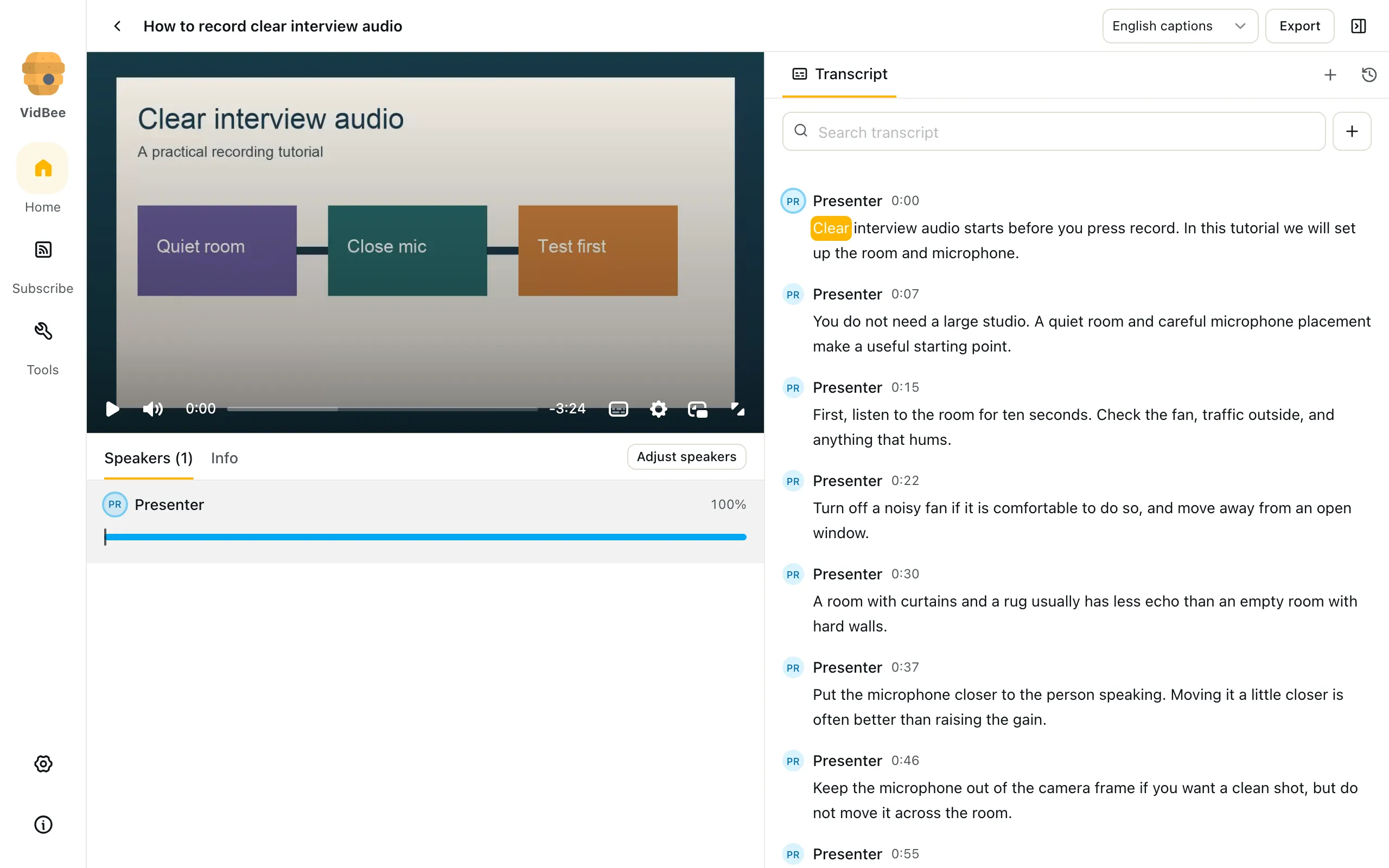
Type a phrase in Search transcript, then click a matching line to hear that moment. Check names, numbers and any sentence you plan to quote. With the source you want selected, click Export. In Export Preview, choose Transcript with .txt or .md, then Export again to save. For SRT, choose Subtitles with Show Timestamp on, export .txt and change the saved extension to .srt. A source switch changes which text you export.
VidBee Desktop with demo data. Search the selected text and click a timed line to check it against playback. View full size
One download, with video and text together
Keep the saved video beside a complete text source in one workspace. Available YouTube captions can be saved with the video in your selected languages. If those captions are missing or unsuitable, the YouTube transcript generator can recognize the downloaded audio locally instead.
Saved captions and a new AI transcript are different results. The first preserves the selected caption track; the second comes from the speech model. Choose the source that fits your task and listen before quoting a name or number. A complete transcript covers the available spoken audio; it is not a promise of error-free wording.
| What you have | Choose in Transcript source | What happens |
|---|---|---|
| A useful saved YouTube caption track | The language-labelled captions entry | Read and export the text saved with the video. No new speech model run is needed. |
| No useful captions, or you want a fresh transcript | AI transcript; Transcribe when idle | The installed model recognizes the saved audio on your computer. The first model download needs a connection. |
| Both sources are available | Switch between captions and AI transcript | Check the wording against playback and export the source you want. Switching does not combine the two texts. |
What to do when YouTube captions are missing or wrong
If the video has not finished saving, fix that first. A link and its title are not local audio. You need a completed download before AI transcript can recognize the speech.
If there is no captions entry in Transcript source, check whether Download subtitles and the language selection were enabled before the download. A source may have no usable caption track. In that case, choose AI transcript, check the installed model and click Transcribe if the source is idle.
If the saved captions are in the wrong language, choose another saved language entry when one is available. To produce a fresh transcript of the spoken audio, use AI transcript instead. Speech recognition follows the voice; it does not turn that voice into a different language. Translation is a separate AI task.
If an export contains unexpected wording, close the preview and check Transcript source. Captions and AI transcript can have different words and timing. Select the intended source, search a phrase you recognize, then reopen Export and check the preview before saving.
What you get in the transcript
- Keep the caption source you chose
- Use the language-labelled caption track for the text saved with the video. Choose AI transcript for a new recognition result. Switching sources lets you compare them; it does not merge their wording.
- Find a passage in a lesson or interview
- Search a phrase, click its timed line and listen to the saved video. Check the sentence around a quotation rather than relying on an isolated search match.
- Check speaker turns in a fresh transcript
- Local recognition can label speakers. Compare those labels with playback before assigning names in your notes. Existing caption tracks have their own text and may not include speaker names.
- Choose the language path
- Saved captions depend on the languages the source offers. A Whisper-family model can recognize the audio in 100+ languages with automatic detection; check the model notes before making a fresh transcript.
| Your task | Choose in Export Preview | Check before saving |
|---|---|---|
| Study notes | Transcript → .md | Use Markdown for your notes. Confirm that the selected captions or AI transcript are the source you meant to use. |
| A quotation with a time | Transcript → .txt; Show Timestamp on | Listen to the quoted sentence and keep its time so you can find the passage again. |
| Subtitles for an editor | Subtitles → Show Timestamp on → .txt | Save the numbered cues, then rename the extension to .srt. This exports the selected text source. |
| Video with the chosen subtitles | Video + Subs → Soft or Hard | Soft creates an MKV with a switchable track; Hard creates an MP4 with burned-in captions. Check the text and times first. |
See real transcript results
This generated tutorial was transcribed locally. It shows the recognition path used after saving a video, rather than an existing YouTube caption track or a real YouTube download.
How to record clear interview audio01:108 timed lines · Whisper Tiny int800:00Clear interview audio starts before you press record.Read transcriptHide transcript
- 00:00–00:03
Clear interview audio starts before you press record.
- 00:03–00:06
In this tutorial we will set up the room and microphone.
- 00:06–00:12
You do not need a large studio, a quiet room and careful microphone placement make a useful starting point.
- 00:12–00:15
First, listen to the room for 10 seconds.
- 00:15–00:30
seconds, check the fan, traffic outside, and anything that harms, turn off a noisy fan if it is comfortable to do so, and move away from an open window, a room with curtains and a rug usually has less echoed in an empty room with hard walls, put the microphone.
- 00:30–00:45
closer to the person speaking, moving at a little closer is often better than raising the gain, keep the microphone out of the camera frame if you want a clean shot, but do not move it across the room, ask your guest to speak at their normal volume, a test recorded in a whisper
- 00:45–01:00
As per will not tell you much, record a short test and listen with headphones, make sure you can hear every word without a harsh crackle, watch the input meter while the guest speaks, leave some room for a louder laugh or an excited answer, if the signal clips, lower the input
- 01:00–01:10
clip with level and make another test, clipping cannot be fixed by turning down playback, use headphones to catch problems early, the camera screen can not show you a loose cable or a rustling shirt.
Try checking a long passage: the line at 00:15 begins “seconds, check the fan”. Listen to where the sentence starts before taking a quotation or turning it into a chapter heading.
Times mark transcript segments. Listen again before relying on names, numbers or a quotation.
Why local transcription matters
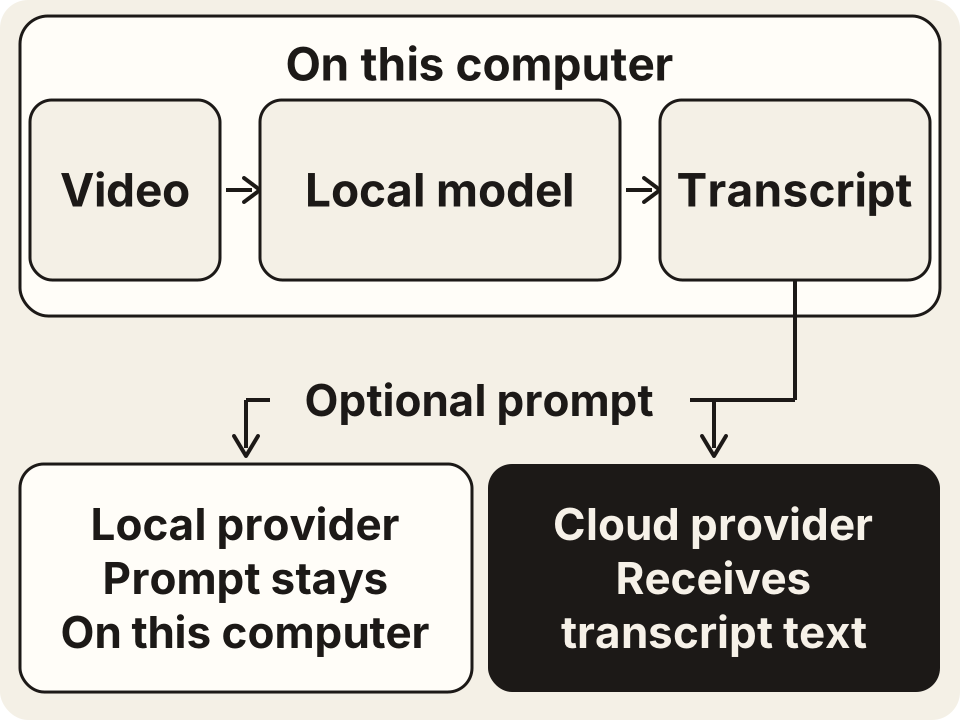
Fetching a YouTube video and its captions needs a connection to the source. Once saved, the video-to-text recognition runs on your computer without uploading the media. Reading a saved caption track does not need a new speech-model run.
Optional cloud AI for notes or translation receives the transcript text you send. Choose local Ollama or LM Studio to keep that prompt on your computer too.
Turn the transcript into the next thing
Select and review the text source before using an AI prompt. Configure a provider in Settings → Providers, click Use, then return to the transcript’s prompt tabs. Treat the response as a draft you can check against the video.
- Chapter notes for a long video
- Ask for topic headings with the transcript’s times. Click the suggested starting lines to check the boundaries before copying them into your notes or a video description.
- Study questions from a lesson
- Ask for questions and answers based on the selected transcript. Keep the relevant passage with each answer and check that the speaker actually explained it.
- A translation to read beside the original
- Ask your chosen provider to translate the reviewed text. Compare names, numbers and technical terms with the original captions or audio before sharing it.
What people are saying
These public community posts also appear on the VidBee homepage. They describe VidBee’s download workflow, rather than testing transcript accuracy.
“Video downloader for 1000+ websites powered by yt-dlp github.com/nexmoe/VidBee/”
“Download videos from almost any website worldwide”
FAQ
Is VidBee free?
Yes. The YouTube transcript generator is part of VidBee’s free, open-source desktop app. You can read saved captions or generate a local transcript without a VidBee account. Optional cloud AI for study notes or translations can have separate provider charges.
Do my files get uploaded?
No audio or video is uploaded for recognition. YouTube supplies the video and any available caption track during the download. A fresh AI transcript then uses the saved audio on your computer. If you send that text to an optional cloud AI provider, the provider receives the transcript text.
Which languages are supported?
For existing YouTube captions, choose the subtitle languages before saving; only tracks available from the source can be saved. For new recognition, Whisper-family models detect speech in 100+ languages. Other models have different coverage, so check their language notes in Settings → Transcription.
What formats can I export?
Export the selected caption track or AI transcript as TXT or Markdown. For SRT, select Subtitles with Show Timestamp on, export TXT, then change the extension to .srt. Video + Subs can save a video with subtitles. Select the text source you want before opening Export Preview.
Do I need an API key?
No API key is needed to read downloaded YouTube captions or recognize the saved audio locally. A speech model is needed only for the recognition path. If you want AI-generated chapters, summaries or translations, configure your own cloud provider or local Ollama or LM Studio separately.
Can I use existing YouTube captions instead of transcribing again?
Yes. Before downloading, enable Download subtitles in Settings → Metadata and choose the subtitle languages you want. When a track is saved, open the finished download and choose its language-labelled entry in Transcript source, such as English captions. That reads the saved captions without new recognition. Choose AI transcript when no useful track was saved or you want a fresh local transcript.
Keep the video and the words you need
Download VidBee for macOS, Windows or Linux. Save the video, choose captions or local recognition, and export the text you have checked.
Download VidBee for desktop