VidBee Desktop with prepared demo data. Drop a video, review a timed transcript, and click a line to seek. Recognition time is omitted.
Try the same workflow with a video on your computer.
Download VidBee for desktopHow it works
If this is your first transcript, start with the local file and model download below. These three steps take you from video to text; use the same import to transcribe audio to text from an interview or voice recording.
Before you start
- Install VidBee and keep the original video or audio file on this computer.
- Download a speech model once. A speech model is a set of files that lets VidBee recognize speech on this computer.
Choose a local file
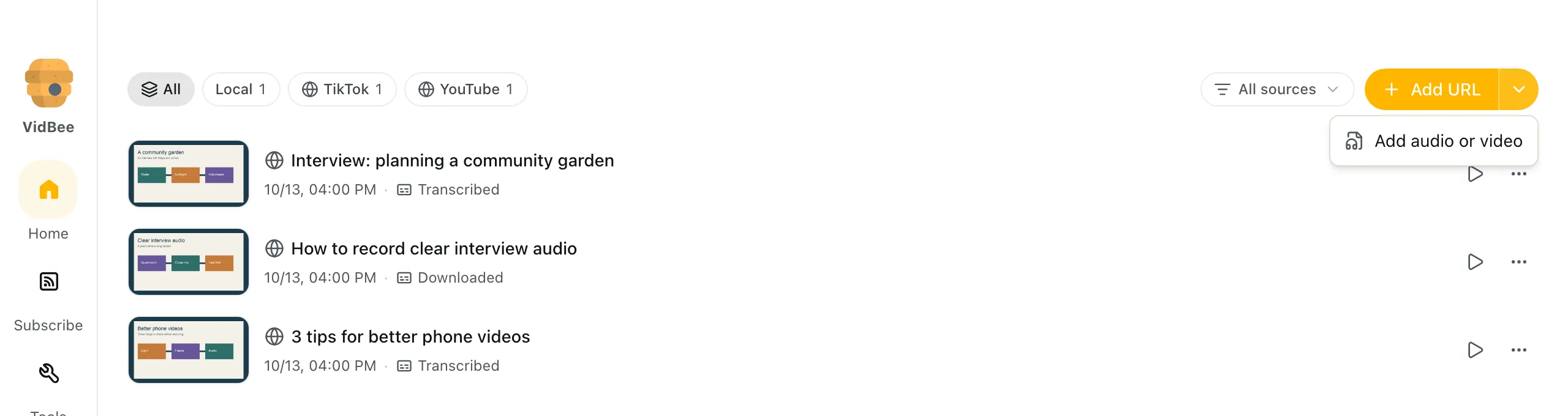
Open Home in VidBee. Drag in your video, or open More ways to add beside Add URL and choose Add audio or video. Select the file you want to transcribe. VidBee adds it to Home and opens its transcript workspace. Keep the original file available for playback. Check that you can hear speech before starting video transcription or audio transcription.
VidBee Desktop with demo data. Choose Add audio or video to select a local recording. View full size Generate the transcript on your computer
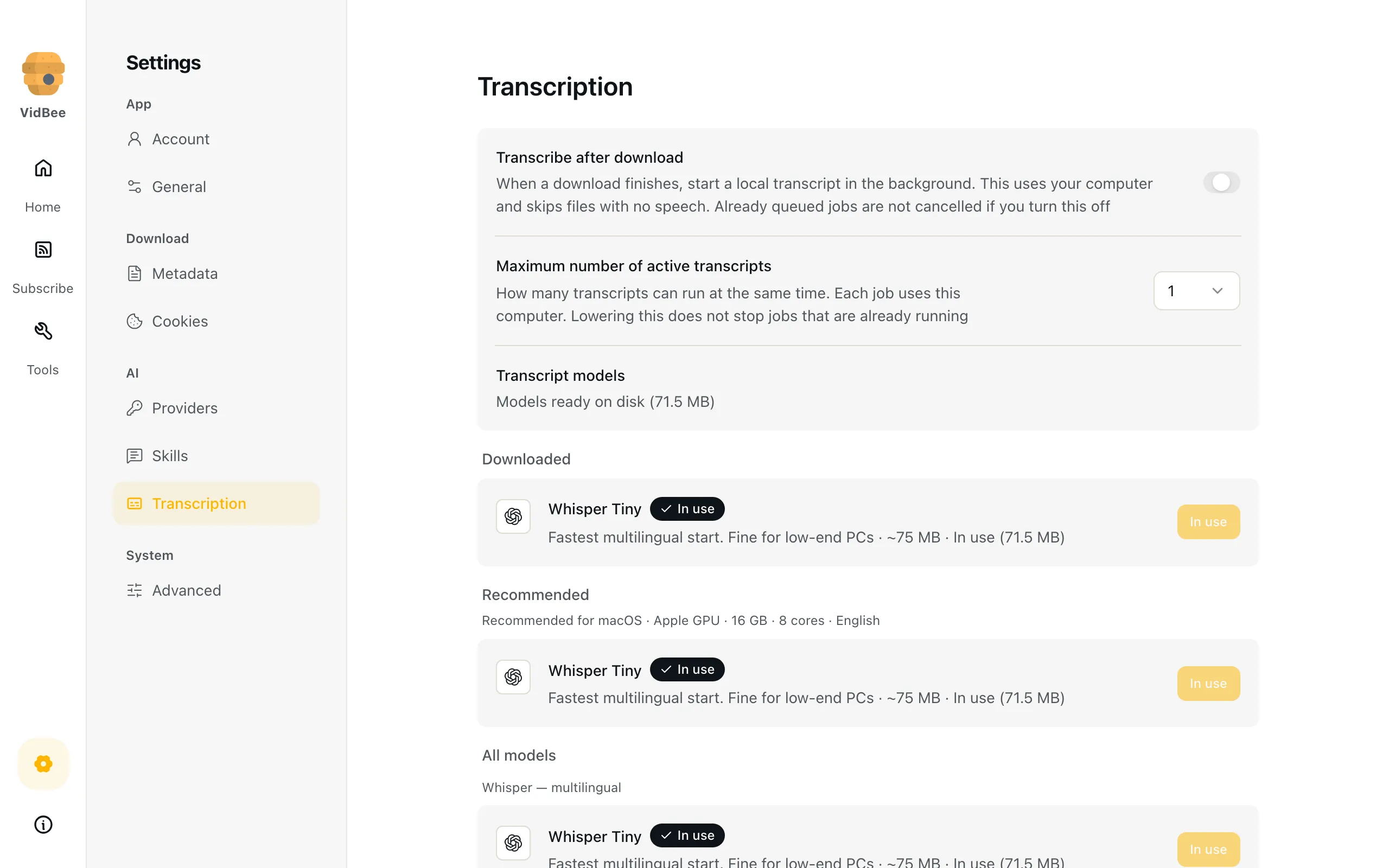
For your first file, let the speech model download. Open Settings → Transcription to see the model list; the active model is marked In use. Allow any queued recognition to finish. If the workspace is idle, choose AI transcript and click Transcribe. After the model is installed, you can transcribe video offline. Names, quiet voices and overlapping speech can still need a listening check.
VidBee Desktop with demo data. Check the active model and its language notes in Settings → Transcription. View full size Search, check and export the text
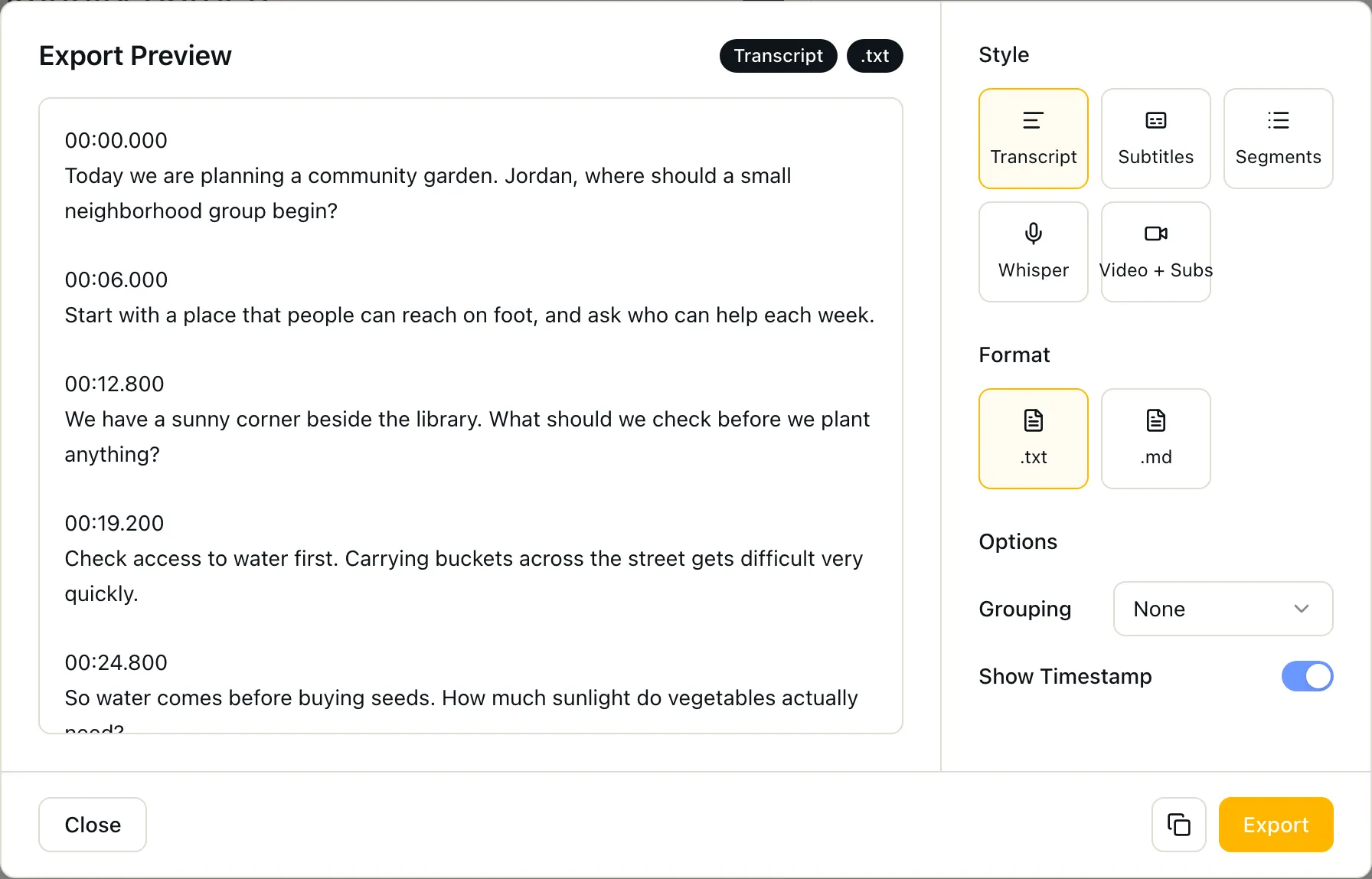
Enter a phrase in Search transcript, then click a matching line to hear that moment. Check names and numbers against the original. Click Export at the top right to open Export Preview. Choose Transcript with .txt or .md, then Export again to save. For SRT, choose Subtitles with Show Timestamp on, export .txt and change the saved extension to .srt. You can also send the checked text to your chosen AI provider for a summary or translation.
VidBee Desktop with demo data. Choose the text style and format, check the preview, then use Export to save. View full size
Check an interview before you export
A searchable transcript helps you find a passage; the recording is still the reference for what was said. If you are turning an interview, meeting or voice recording into notes, use this short review before sharing the text.
Check the words you plan to use
Search for a person’s name, a project or a number. Click the timed line and listen to the surrounding sentence. If the recognized word is wrong, correct your exported notes against the recording. Leave uncertain words marked for another listen instead of guessing.
Check who said each line
Compare the speaker labels with the voices in the recording. If the turns need another pass, open Adjust speakers, choose the count and click Update speakers. This re-labels speakers while keeping the words. Keep a name key in your exported notes, such as Speaker 1 = interviewer, so another reader knows who is speaking.
Match the export to its next use
For quotations or meeting notes, keep timestamps so you can return to the source. For a document, choose TXT or Markdown. For a video editor, use the timed subtitle export described below. Check Export Preview before saving and keep the original recording beside the exported text.
What to check if a local file has no transcript
Start with playback. If the file has no audible speech, speech recognition has no words to recover. A title card, music or text in the video picture is not a spoken transcript. Check the original file before changing models.
If recognition is waiting, open Settings → Transcription and check that a speech model has finished downloading and is marked In use. The first model download needs a connection. Return to AI transcript; let a queued job finish, or click Transcribe if it is idle.
If the words are incomplete, listen to the affected passage. Quiet voices and overlapping speakers need a closer review. Keep those uncertainties in your notes; a complete-looking text file does not prove that every word or speaker label is right.
What you get in the transcript
- Timestamps beside playback
- Read the text next to the video. Each timed line points to the part of the recording it came from, so you can listen again before using a quote.
- Speaker labels
- See who spoke and use the speaker timeline to find their turns. Adjust speakers lets you choose a count when the labels need another pass. You can replace labels with names in your exported notes.
- Search and jump to a moment
- Type a phrase in Search transcript, move through the matches, and click a line to seek the player. Find the answer in a long interview without replaying it from the start.
- 100+ languages with automatic detection
- Whisper-family models recognize speech in 100+ languages and detect the spoken language. Other local models cover fewer languages. Check the language notes in Settings when choosing a model.
| What you need | Choose in Export Preview | What to save |
|---|---|---|
| Plain text (TXT) | Transcript → .txt | Save a .txt file for notes or quotations. Keep Show Timestamp on when you want to return to the recording. |
| Markdown (MD) | Transcript → .md | Save a .md document for a Markdown editor or your own writing workflow. |
| Timed subtitles (SRT) | Subtitles → Show Timestamp on → .txt | Export the numbered cues as .txt, then change the saved file extension to .srt before importing it into your video editor. |
| Video with subtitles | Video + Subs → Soft or Hard | Soft saves an .mkv with a switchable subtitle track. Hard saves an .mp4 with captions burned in. Requires video input; audio-only files export text. |
See real transcript results
Listen to a generated interview and read its original local recognition result. Expand the timed lines, then compare a passage with the audio before using it in your notes.
Interview: planning a community garden00:5014 timed lines · Whisper Tiny int800:00Today we are planning a community garden, Jordan, where should a small neighborhood group begin?Read transcriptHide transcript
- 00:00–00:05
Today we are planning a community garden, Jordan, where should a small neighborhood group begin?
- 00:05–00:09
Start with a place that people can reach on foot, and ask who can help each week.
- 00:09–00:11
We have a sunny corner beside the library.
- 00:11–00:14
What should we check before we plant anything?
- 00:14–00:15
Check out!
- 00:15–00:22
Check access to water first, carrying buckets across the street gets difficult very quickly, so water comes before buying seeds.
- 00:22–00:25
How much sunlight do vegetables actually need?
- 00:25–00:30
Watch the space over a whole day, tomatoes need more sun than leafy greens do.
- 00:30–00:32
you, a few neighbors suggested starting with herbs.
- 00:32–00:35
Would that make the first season easier?
- 00:35–00:39
Yes, herbs are useful in a small space, and people can harvest a little at a time.
- 00:39–00:43
What would you put in the first race bed if the group has never gardened before?
- 00:43–00:45
I would try lettuce.
- 00:45–00:50
Radishes and a few herbs , keep the first planting small enough to manage .。
Try the review step: the line at 00:39 contains “first race bed”. Play that passage and decide what belongs in your notes. The sample text is kept as recognized.
Times mark transcript segments. Listen again before relying on names, numbers or a quotation.
Why local transcription matters
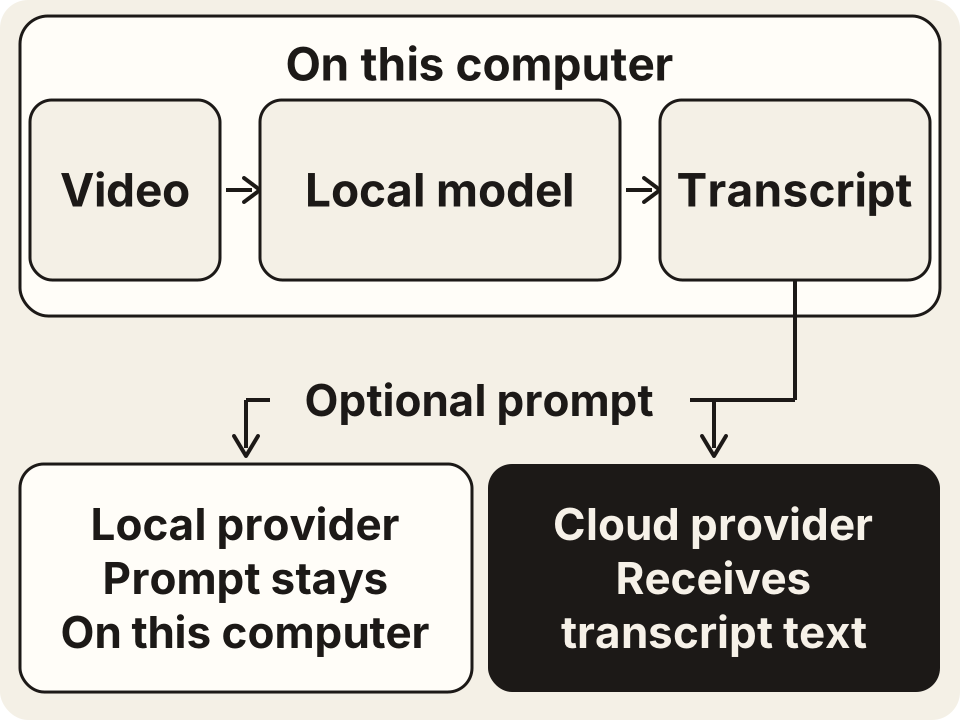
The recording stays on your computer. VidBee does not upload audio or video to someone else’s speech-recognition server. Once the model is downloaded, the audio to text step can run offline. Keep the original and the transcript in folders you control.
AI prompts are a separate choice. A cloud provider receives the transcript text you send for a summary or translation. Choose a local provider, such as Ollama or LM Studio, to keep that prompt on your computer too. Your video file stays local in either case.
Turn the transcript into the next thing
In Settings → Providers, configure your own provider with an API key and model when needed, or choose local Ollama or LM Studio. Click Use, return to the finished transcript and choose a prompt tab. All prompts shows the other choices; a custom prompt can ask for chapters or a quote list.
- Summaries
- Ask your chosen AI provider for the main points and decisions. Keep the transcript next to the summary so you can check what was actually said.
- Translations
- Turn the checked transcript into a draft in another language. Review names and meaning before sharing the translation.
- FAQs
- Ask for questions and answers drawn from a lesson or interview. Check each answer against the source instead of adding facts the speaker did not give.
- Chapters
- Ask for topic headings with timestamps, then use playback to check where each topic starts. Use the draft to organize a long recording.
- A quote library
- Save useful passages with their source and time. Search the transcript to find them again, and listen to the surrounding line before publishing a quote.
What people are saying
These public community posts also appear on the VidBee homepage. They describe VidBee’s download workflow, rather than testing transcript accuracy.
“Video downloader for 1000+ websites powered by yt-dlp github.com/nexmoe/VidBee/”
“Download videos from almost any website worldwide”
FAQ
Is VidBee free?
Yes. VidBee is free and open source. You do not need to sign up to transcribe local files in the desktop app. Optional cloud AI providers may require their own account or charge for use.
Do my files get uploaded?
No. The video transcript generator recognizes the file on your computer after the speech model downloads. Your audio and video are not uploaded for recognition. If you choose an optional cloud AI provider for a summary or translation, that separate step sends it transcript text.
Which languages are supported?
Whisper-family models support 100+ languages and automatically detect the spoken language. Other models have different language coverage. The language notes in Settings → Transcription help you choose a model for your recording.
What formats can I export?
Export TXT or MD directly from Export Preview. For SRT, choose Subtitles with Show Timestamp on, export TXT, then change the saved file extension from .txt to .srt. For video input, Video + Subs can add a switchable subtitle track or burn captions into a new video. Audio-only files export text.
Do I need an API key?
No API key is needed for local transcription. For summaries, translations and other optional AI prompts, choose your own provider. Cloud providers may need your API key; a local provider such as Ollama or LM Studio can keep that step on your computer.
Can I transcribe a video I downloaded from YouTube or TikTok?
Yes. Downloading and importing lead to the same local transcript workspace. Save a video you have permission to download, open the finished item on Home and choose AI transcript. If you already have the file, add it from Home. The file must finish saving before local recognition can start.
Turn your next recording into text
Download VidBee for macOS, Windows or Linux. Add a local file, let the model recognize its speech, then find the words you need.
Download VidBee for desktop