VidBee Desktop with prepared demo data. Download and recognition waits are omitted.
Start with a TikTok link in VidBee, then search the words in the saved clip.
Download VidBee for desktopHow it works
If this is your first transcript, turn one TikTok video to text before adding a batch. Check that you can hear a voice in the clip. Follow the three steps below for one video, or use the batch guide for several links.
Before you start
- Install VidBee and copy a TikTok link you have permission to download.
- Keep a connection while the clip saves.
- Download a speech model once: the files that let VidBee recognize speech on this computer. Later saved files can reuse it offline.
Paste the TikTok link and save the clip
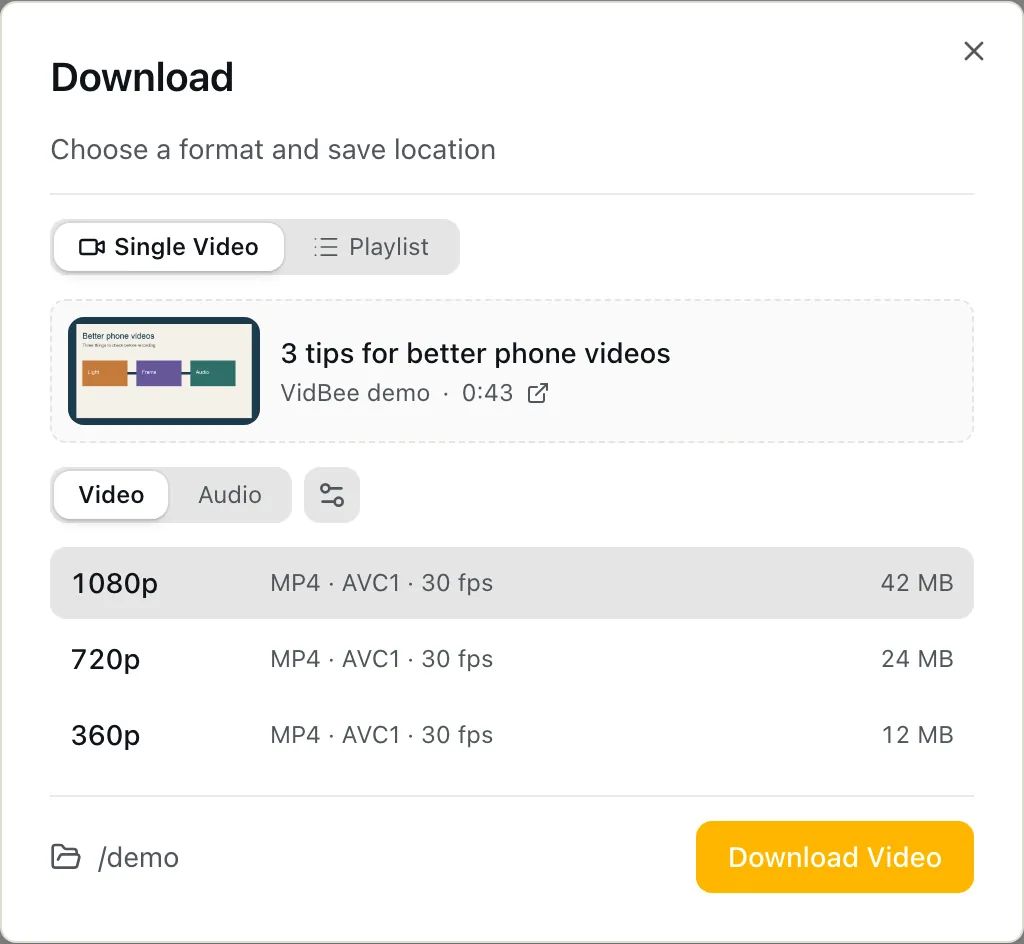
Copy the clip’s share link from TikTok. On Home in VidBee, click Add URL, paste it into Enter Video URL and click Fetch. Choose a video format, then Download Video. If One-Click Download is enabled, VidBee uses your defaults and skips format setup. Wait for the item to finish saving on Home. For several links, use the queue instructions in the FAQ below.
VidBee Desktop with demo data. Choose a video format after Fetch. This populated example is not a real TikTok download. View full size Open the saved clip and generate its transcript
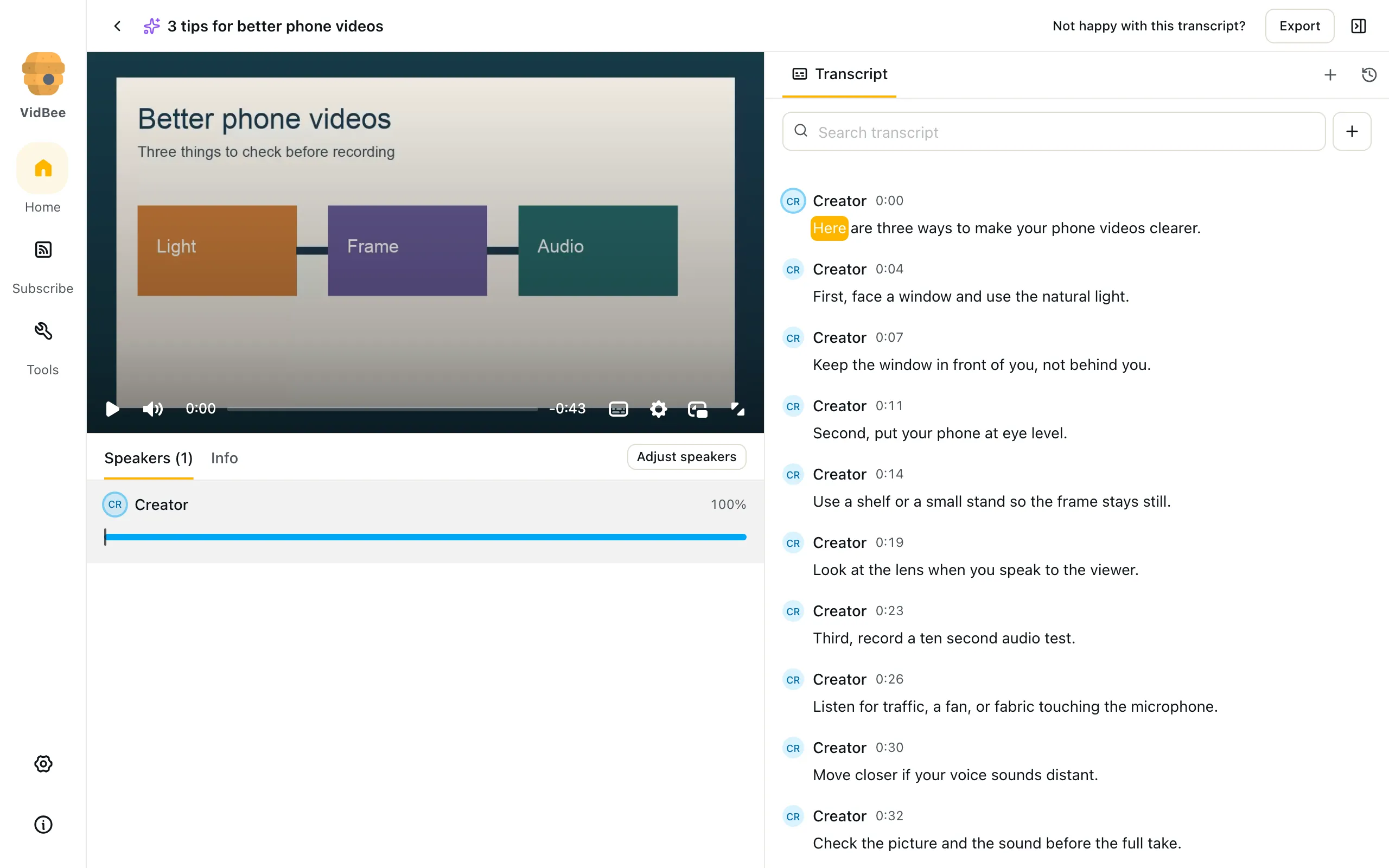
Open the finished item on Home and choose AI transcript. Let the first speech model download and any queued recognition finish. If the workspace is idle, click Transcribe. Settings → Transcription shows the downloaded models and marks the active one In use. Recognition runs on this computer using the saved audio. If the file did not save, fix the download first; a link alone cannot supply audio for local recognition.
VidBee Desktop with demo data. Read the complete short-video transcript beside playback. View full size Find spoken words and save the result
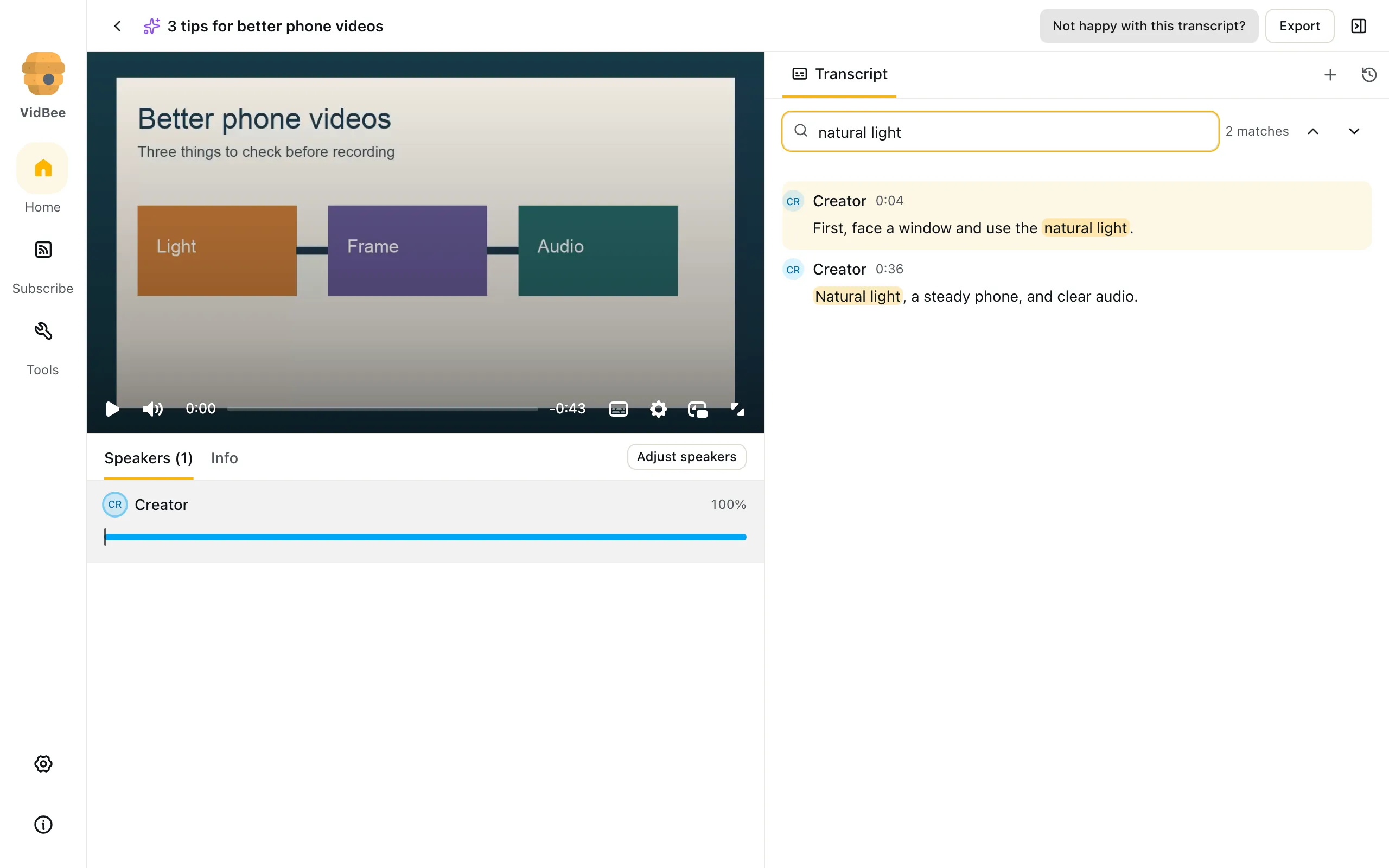
Enter a phrase in Search transcript and click a matching line to play that moment. Check names and fast speech against the original. Click Export, choose Transcript with .txt or .md in Export Preview, then Export again to save. For SRT, choose Subtitles with Show Timestamp on, export .txt and change the saved extension to .srt. You now have the clip and a separate text file for notes, subtitles or your own AI prompt.
VidBee Desktop with demo data. Find a spoken phrase, then check the matching line against the clip. View full size
A clean video and the spoken transcript, together
Keep the clip for playback and the TikTok transcript for search, notes or captions. Save a watermark-free video when TikTok makes that source available, then recognize the spoken audio locally. The transcript follows the speech; text drawn into the picture is not automatically part of it.
Watermark-free availability varies by source. VidBee does not erase logos or text already baked into the video pixels. Check the saved clip before using it, and keep only content you have permission to save and use.
How to transcribe several TikTok clips
Use a queue when you have several clips to review. The multiple-link flow uses your default download settings; it does not open a separate format picker for every video.
Prepare the model and defaults
In Settings → Transcription, finish downloading your speech model and enable Transcribe after download. Check the download defaults you want to use for this set of clips before adding the links.
Add one link per line
On Home, open Add URL and paste the TikTok links on separate lines. Enable One-Click Download in that popover. Multiple links require this option; the normal format-picking flow accepts one link.
Fetch and follow the queue
Click Fetch to queue the clips. Successful saves can then queue recognition. Download and transcription jobs follow their concurrency settings, so a queue does not mean every clip is processed at the same time.
Review each finished clip
Open an item on Home, read its AI transcript and play the phrases you plan to reuse. Export each checked result. If an item failed to save, resolve its download first; changing the speech model cannot supply a missing audio file.
Check a short clip before reusing its script
If the transcript is empty, play the saved clip and listen for a voice. Music, a silent slideshow or text in the picture does not provide a spoken script. VidBee’s speech model is not a tool for reading letters from video frames.
If a fast sentence looks wrong, search a nearby phrase and play the timed line. Check the whole sentence, especially names, prices or measurements. Correct your exported script against the audio and mark words you cannot hear clearly.
If you need clean video as well as text, inspect the saved file. A watermark-free source must be available; VidBee does not erase a logo or caption baked into the picture. Adding new subtitles does not remove the old ones.
What you get in the transcript
- A script of the spoken words
- Keep the speech from a short clip as text you can search or quote. Picture captions, logos and other text drawn into the video are not recovered by speech recognition.
- Search a short hook or instruction
- Find a phrase, then play its timed line to check fast speech. Listen to names and numbers before copying a hook or turning an instruction into notes.
- Timed text for subtitles
- Keep segment times when exporting subtitles. Check each cue against playback before adding it to another video; the recognized text can contain mistakes even when the timing looks complete.
- Local models for spoken languages
- Reuse an installed model across saved clips. Whisper-family models recognize 100+ languages with automatic detection. For several voices, compare speaker labels with the clip before assigning names in your notes.
| What you are making | Choose in Export Preview | Review before using it |
|---|---|---|
| A spoken script | Transcript → .txt | Listen to the hook and any names or numbers. Keep the wording you heard rather than guessing from a fast line. |
| Notes for a collection of clips | Transcript → .md | Keep the clip’s source and your notes together so ideas from different videos do not get mixed up. |
| Subtitles for a video editor | Subtitles → Show Timestamp on → .txt | Rename the exported extension to .srt. Compare the cue text and times with the saved clip. |
| A video with visible subtitles | Video + Subs → Hard | Hard creates an MP4 with burned-in captions. Soft creates an MKV with a switchable track. Neither option erases text already in the picture. |
See real transcript results
This generated short recording shows how spoken tips become timed text. It is a local recognition example, rather than a real TikTok download. Expand it and listen before reusing the script.
3 tips for better phone videos00:4311 timed lines · Whisper Tiny int800:00Here are three ways to make your phone videos clearer.Read transcriptHide transcript
- 00:00–00:03
Here are three ways to make your phone videos clearer.
- 00:03–00:05
First, face a window and use the natural light.
- 00:05–00:08
Keep the window in front of you, not behind you.
- 00:08–00:10
Second, put your phone at eye level.
- 00:10–00:13
Use a shelf or a small stand so the frame stays still.
- 00:13–00:15
Look at the lens window.
- 00:15–00:30
When you speak to the viewer, third, record a 10 second audio test, listen for traffic, a fan, or fabric touching the microphone, move closer if your voice sounds distant, check the picture and the sound before the full take, natural light, a step
- 00:30–00:31
Study phone and clear audio.
- 00:31–00:34
Save this checklist for your next short video.
- 00:34–00:39
Before the full recording, play the test once and check the words you planned to say.
- 00:39–00:43
A short video is easier to follow when the viewer can hear each sentence clearly.
Try a short-clip check: the line at 00:30 reads “Study phone and clear audio.” Play the audio around it before copying the words into a script or subtitle.
Times mark transcript segments. Listen again before relying on names, numbers or a quotation.
Why local transcription matters
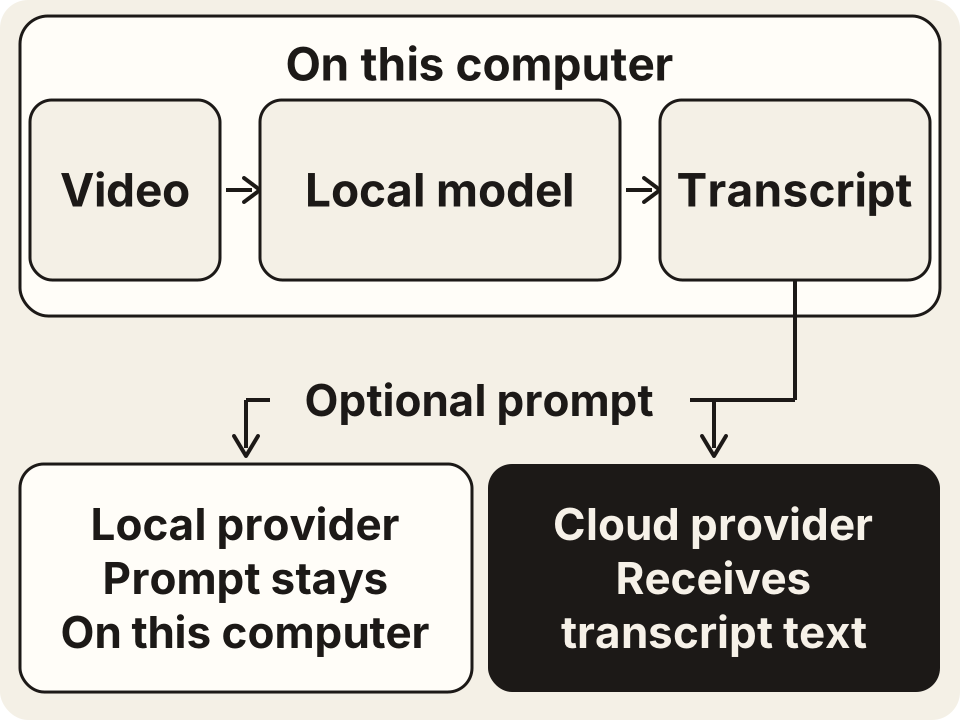
After a clip saves, its spoken script is generated from local audio. Reuse the installed speech model for other saved clips without uploading them to a recognition service. The source download and first model download still need a connection.
An optional cloud AI rewrite receives the script text you send, rather than the video. Choose Ollama or LM Studio if you want that prompt to stay local too.
Turn the transcript into the next thing
Keep the clip and a checked script together before asking AI to reuse the idea. Select your provider in Settings → Providers and click Use, then choose a prompt tab or a custom prompt from the finished transcript. Review the response before publishing.
- A checklist from spoken tips
- Ask for the actions described in the clip, in their original order. Compare each action with the recording and leave out advice the speaker did not give.
- A draft for your own short video
- Use a custom prompt to turn your notes into an outline for your own recording. Keep quotations separate from your wording and respect the source creator’s rights.
- A translated script to review
- Ask your selected AI provider for a translation of the checked speech. Verify names and short instructions before using the draft in captions or a new voice recording.
What people are saying
These public community posts also appear on the VidBee homepage. They describe VidBee’s download workflow, rather than testing transcript accuracy.
“Video downloader for 1000+ websites powered by yt-dlp github.com/nexmoe/VidBee/”
“Download videos from almost any website worldwide”
FAQ
Is VidBee free?
Yes. Saving supported clips and generating their transcripts are part of VidBee’s free, open-source desktop app. No VidBee account is needed. If you use a separate cloud AI provider to rewrite or translate a script, that provider can charge for its service.
Do my files get uploaded?
The TikTok transcript generator recognizes a saved clip’s audio locally; it does not upload the clip for recognition. Fetching the original video still needs a connection. Optional cloud AI receives the transcript text you send for a rewrite or translation; a local AI provider keeps that step on your computer.
Which languages are supported?
Whisper-family models support 100+ spoken languages with automatic detection. Check the chosen model’s language notes in Settings → Transcription. This applies to the voice in a clip, not text drawn into the picture. A clip with only music or silent text has no spoken script to recover.
What formats can I export?
Use TXT for a spoken script or Markdown for notes about a clip. To create SRT, choose Subtitles with Show Timestamp on, export TXT and rename the extension to .srt. Video + Subs can make a video with subtitles. Check the words and cue times before reusing either output.
Do I need an API key?
Local recognition of a saved TikTok clip uses a downloaded speech model, not an API key. For an optional AI rewrite, summary or translation, connect your own provider in Settings → Providers. You can also choose local Ollama or LM Studio instead of sending the script to a cloud provider.
Can I process multiple TikTok links at once?
Yes. Put one link on each line in Add URL and enable One-Click Download before Fetch. With Transcribe after download enabled, successful saves queue recognition. Jobs follow your download and transcription concurrency settings; unsuccessful saves do not supply local audio.
Keep the clip and make its words useful
Download VidBee for macOS, Windows or Linux. Save a clip, create its transcript locally, and export the text you have checked.
Download VidBee for desktop